
SoftEther VPN Client Manager is more than a simple tool for starting a VPN connection. On Windows, it functions as the central place where you create, save, organize, and maintain connection settings for repeatable remote access. Once you begin working with multiple destinations, test environments, office systems, or Japan-based resources, good connection management becomes just as important as the VPN connection itself.
This guide explains how to use SoftEther VPN Client Manager in a practical, day-to-day way. You will learn how to understand the main screen, create and save new connection settings, rename profiles clearly, duplicate existing entries for similar environments, and remove outdated settings safely. The article also covers how to connect and disconnect properly, how to confirm that a VPN connection is actually working, and how to troubleshoot common issues involving saved settings, Windows networking, and the Virtual Network Adapter. If you want a clearer workflow for managing SoftEther VPN access on Windows, this article will help you turn scattered profiles into a structured and reusable system.
What Is SoftEther VPN Client Manager?
What the Client Manager Is Used For
SoftEther VPN Client Manager is the Windows graphical interface used to operate SoftEther VPN Client. It provides a practical way to handle day-to-day VPN client tasks. In practical terms, you can use it to:
- Create a new VPN connection profile
- Save server and authentication information for later use
- Edit existing connection settings
- Connect to and disconnect from VPN sessions
- Manage the virtual network adapter used by the client
- Check connection status when you need to confirm whether a VPN session is active
If you only connect once, the tool may seem straightforward. However, if you work with multiple environments or need to reconnect regularly, Client Manager becomes much more valuable. It helps you avoid entering the same information repeatedly and gives you a single place to manage VPN profiles in an organized way.
How It Differs From the Initial Setup Process
It is helpful to separate SoftEther usage into two stages.
- The first stage: the initial setup process, which includes downloading the client, installing it, and preparing the environment.
- The second stage: day-to-day operation, where you use Client Manager to create, edit, reuse, and troubleshoot connection settings.
This article focuses on the second stage: everyday use of SoftEther VPN Client Manager after installation.

That distinction also matters for ongoing maintenance. Many users do not struggle with installation itself as much as they do with routine tasks such as switching between profiles, updating server information, or confirming that a connection is active.
Understanding the Main Screen of SoftEther VPN Client Manager
The Connection Settings List
The main screen of SoftEther VPN Client Manager displays a list of saved connection settings. Each entry represents a saved connection profile. A profile may include the destination server, the Virtual Hub name, authentication details, and other connection options, depending on how it was configured.
This list is the part of the interface you will use most often. If you connect to different servers, labs, projects, or office environments, each saved entry can serve as a reusable shortcut. Instead of rebuilding your connection from scratch each time, you can simply select the profile you want and start the VPN session.
Because of that, naming matters. A clear name such as Tokyo Office VPN, Japan VPS Admin Access, or Development Test Hub is much better than a vague label like New Connection 1. Good naming conventions make profile switching faster and reduce the risk of connecting to the wrong environment.
The Virtual Network Adapter Section
SoftEther VPN Client relies on a Virtual Network Adapter to handle VPN traffic on Windows. In Client Manager, you may see a section related to this adapter, depending on the version and interface layout. This adapter is not just a background component. It is a core part of how the VPN client integrates with the Windows networking stack.
In simple terms, the virtual adapter is a logical network interface created by the client software. When a VPN session is active, traffic is handled through this adapter according to the connection settings and the network design of your environment.
If a connection profile looks correct but the VPN still does not behave as expected, the adapter is one of the first things worth checking. It may be missing, disabled, or not functioning as expected. Even without deep networking knowledge, recognizing that the Virtual Network Adapter exists helps you understand what the client is doing in the background.
Common Buttons and Menus You Will Use
Most daily operations in Client Manager are straightforward once you know where to look. Common actions typically include:
- Creating a new connection setting
- Editing a selected profile
- Connecting to the selected destination
- Disconnecting an active session
- Viewing or managing adapter-related items
- Opening properties or advanced settings for a profile
Right-click menus can also be useful. In many cases, the fastest way to work is to select a profile and use the context menu for actions such as edit, duplicate, or delete. Once you become familiar with that pattern, Client Manager feels less like a one-time setup utility and more like an efficient way to manage reusable VPN connection profiles.
How to Create and Save a New VPN Connection
Information You Need Before Creating a Connection
Before you create a new connection setting, gather the required information in advance. The exact fields depend on your network environment and authentication method, but in many cases you will need:
- The VPN server host name or IP address
- The port number, if a non-default port is required
- The target Virtual Hub name
- Your authentication details
- An optional display name for the connection setting
Having this information ready helps you avoid incomplete or confusing connection entries. It also makes it easier to separate connection creation from troubleshooting. If you create connection settings carefully from the beginning, later edits become much simpler.
How to Add a New Connection Profile
To create a new profile, open SoftEther VPN Client Manager and select New Connection Setting from the menu. A configuration window will appear where you enter server-related information, connection options, and authentication details.
Take your time with each field. Even small errors in the host name, port number, or Virtual Hub name can prevent the connection from being established. If you are creating a profile for a work environment or a Japan-based remote access workflow, it is a good idea to copy the official values from your source documentation rather than entering them from memory.
Once the required fields are complete, save the connection setting. At that point, the profile should appear in your connection list. This makes it available for future sessions, which is one of the biggest advantages of Client Manager: you are creating reusable connection settings instead of relying on one-time manual actions.
How to Save and Organize Connection Names
Profile naming is easy to overlook, but it becomes important quickly. If you only have one profile, the label may not matter. If you have five or ten, unclear names can turn the list into a maintenance problem.
A practical naming structure often includes location, environment, and purpose. For example:
- Japan VPS – Admin
- Tokyo Office – Staff Access
- Dev Hub – Temporary Test
- Production VPN – Read Only
With names like these, you can understand the target at a glance. This is especially useful when you manage separate profiles for production, development, support, or region-specific access. Good organization also makes it safer to duplicate and edit profiles later.
How to Edit, Duplicate, and Delete Connection Profiles
When You Should Edit an Existing Profile
Editing a profile is useful when the purpose of the connection remains the same but one or two values need to change. Common examples include updating the server host name, changing the port number, switching to a different Virtual Hub, or renaming the connection for clarity.
Using edit instead of creating a completely new profile can help keep your list clean. However, you should only edit a profile when it still represents the same environment. If the new target is meaningfully different, creating a separate profile is usually the safer option.
How to Duplicate a Profile for Similar Servers
Duplication is one of the most useful profile management techniques in Client Manager. If you already have a working profile and need another one with only minor differences, duplicating the original can save time and reduce configuration mistakes.
For example, imagine you have a connection profile for a staging VPN and need a second profile for production. The server location, general structure, and login method may be similar, but the destination values are not identical. Duplicating the profile lets you keep the settings that remain the same while changing only the fields that differ.
This is also helpful for users who connect to multiple Japan-based resources, such as separate Windows environments, management nodes, or test systems. Instead of recreating everything, duplication turns profile management into a repeatable and safer workflow.
How to Remove Unused Profiles Safely
Deleting unused profiles can make the interface easier to manage, but it should be done carefully. Before removing an entry, confirm that it is truly obsolete and not just temporarily inactive. In team environments, this matters even more, especially if naming conventions are not yet well established.
A simple best practice is to rename questionable entries first instead of deleting them immediately. For example, adding a prefix like OLD or REVIEW can help you clean up the list gradually without losing something you may still need later.
Once you are sure the profile is no longer needed, remove it to keep the connection list clear and easy to manage.
How to Connect, Disconnect, and Switch Between VPN Profiles
Starting a VPN Session
To start a VPN connection, select the profile you want and use the connect action. If the profile has been configured correctly and the target environment is reachable, the client should establish a VPN connection using the saved settings.
This is where the benefit of Client Manager becomes obvious. You do not need to rebuild the connection each time. You simply choose the correct profile and initiate the connection. For users who regularly access remote infrastructure from Windows, this makes connection management much faster and less error-prone.
Disconnecting a Session Properly
When you are done, disconnect the active connection using Client Manager rather than assuming that closing a window is enough. A proper disconnect helps ensure that the VPN connection ends cleanly and that the client returns to a known state.
This matters most when you move between environments or use a VPN only for certain administrative tasks. Clean connect-and-disconnect habits make it easier to confirm which network path is currently in use and reduce confusion during troubleshooting.
Switching Between Multiple Saved Connections
If you manage multiple VPN profiles, switching becomes part of normal operation. The simplest way to do this is to disconnect the current connection, confirm that it has ended, and then connect using the other saved profile.
This is particularly useful when you work across different remote environments, such as internal resources, test labs, or Japan-hosted systems. A stable profile list makes switching predictable. It also helps when you need to document operational steps for teammates or standardize the way Windows users connect to specific resources.
How to Check Whether Your VPN Connection Is Working
Reading the Status in Client Manager
The first place to check is Client Manager itself. Look for indications that the VPN connection is established and currently active. Status wording may vary, but the goal is the same: confirm that the client is not just configured, but actually connected.
This distinction is important. A saved connection setting does not prove that the VPN connection is currently established. You need to confirm that an active connection exists.
Checking Your IP Address and Network Route on Windows
After confirming the connection status in Client Manager, check the Windows side as well. In many use cases, this means verifying your IP behavior, reachable network resources, or route changes expected from the VPN connection.
For example, if your workflow depends on reaching a Japan-based environment, the practical question is not only whether the client says “connected,” but whether your Windows system can now access the intended destination properly. In other words, confirm the network result, not just the connection action.
Common Signs of a Misconfigured Connection
A connection may appear successful while still not working the way you expect. Typical warning signs include:
- The client shows a connection, but the target resource is unreachable
- Your Windows network behavior does not change as expected
- The wrong profile was used
- An old server value remains in the saved settings
- The Virtual Network Adapter is present but not behaving normally
When this happens, review the profile carefully instead of rebuilding everything immediately. In many cases, the problem is not with the client software itself but with one incorrect value in an otherwise valid configuration.
Common Client Manager Problems and Practical Fixes
The Connection Setting Does Not Work as Expected
If a saved connection setting does not connect, start with the basics. Review the server host name, port number, Virtual Hub name, and authentication method. Then confirm that you selected the intended profile and not a similar one with outdated information.
This is another reason why clear naming and profile organization matter. Many apparent client problems are actually connection-setting management problems.
The Virtual Network Adapter Is Missing or Disabled
If the Virtual Network Adapter is unavailable, Client Manager may not behave as expected even when the profile looks correct. Check whether the adapter exists in Windows and whether it appears active from the system side.
Adapter-related issues are especially important after system changes, permission changes, or software adjustments. If your environment depends on reliable Windows-based remote access, keeping the adapter available and functioning normally is part of proper client maintenance.
The VPN Connection Is Established, but Traffic Does Not Flow as Expected
Sometimes the VPN connection is established, but the practical result is still wrong. In that case, troubleshoot in layers.
First confirm the connection in Client Manager.
Then confirm the Windows network result.
Finally confirm that the remote destination itself is responding as expected.
This layered approach keeps troubleshooting efficient. It helps you avoid making unnecessary changes to a profile that may already be correct.
Using SoftEther VPN Client Manager for Stable Japan-Side Access
When a Japan VPS Makes Remote Access Easier
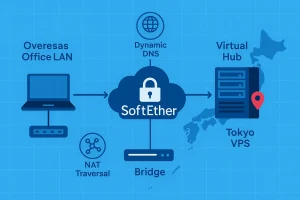
Many remote access workflows become easier when the destination environment is stable and aligned with the resources you actually need to access. If your work involves Japan-hosted systems, region-specific testing, or operational access to services in Japan, a Japan VPS can make connection management more consistent because the endpoint remains stable.
Instead of focusing only on the VPN client, consider the full access path. The better the destination environment is organized, the easier it becomes to create clean connection profiles, document them properly, and reuse them without confusion.
Why Windows-Based Remote Access Workflows Benefit From Better Infrastructure
SoftEther VPN Client Manager is a useful tool, but it is still only one part of a broader operational workflow. If the Windows-based access environment is unstable or inconsistent, even a well-managed set of VPN profiles can become harder to use effectively.
For teams and technical users who need predictable remote access to Japan-based environments, choosing the right Windows VPS or Japan VPS setup can support a cleaner workflow.
It can also make it easier to standardize connection profiles, reduce unplanned changes, and keep operational steps consistent across users.
Conclusion
SoftEther VPN Client Manager is not just a simple screen for starting a VPN connection. It is the place where you organize, maintain, and operate VPN access on Windows. Once you understand the main screen, connection settings, Virtual Network Adapter behavior, and status checks, the tool becomes much easier to use as part of a repeatable workflow.
The biggest improvement usually comes from a structured approach. Create clear profile names, duplicate profiles when appropriate, edit settings carefully, disconnect cleanly, and verify actual connectivity instead of relying only on the interface.
If your workflow includes repeated access to Japan-based environments, a well-managed SoftEther setup combined with a reliable Windows VPS or Japan VPS environment can make remote operations smoother and easier to maintain.
FAQ
Q1. How do I create a new connection setting in SoftEther VPN Client Manager?
A1. Open SoftEther VPN Client Manager, create a new connection setting, and enter the required server information such as the host name, port number, Virtual Hub name, and authentication details. Once saved, the setting appears in your connection list and can be reused whenever needed.
Q2. What does the Virtual Network Adapter do in SoftEther VPN Client?
A2. The Virtual Network Adapter is the logical network interface used by SoftEther VPN Client on Windows. It allows VPN traffic to be handled through the client and is an essential part of how the VPN connection works on the local system.
Q3. How can I confirm that my SoftEther VPN connection is actually working?
A3. First, check Client Manager to confirm that the connection is active. Then verify the result on Windows by checking whether your expected network behavior, reachable resources, or destination access has changed as intended. A saved profile alone does not prove that the VPN connection is currently working.
Need a More Stable Environment for Japan-Based Remote Access?
If you regularly use SoftEther VPN Client Manager to reach systems in Japan, a reliable Japan VPS can make connection management more consistent and easier to maintain. Explore Winserver’s Japan VPS plans to build a smoother Windows-based remote access workflow.