
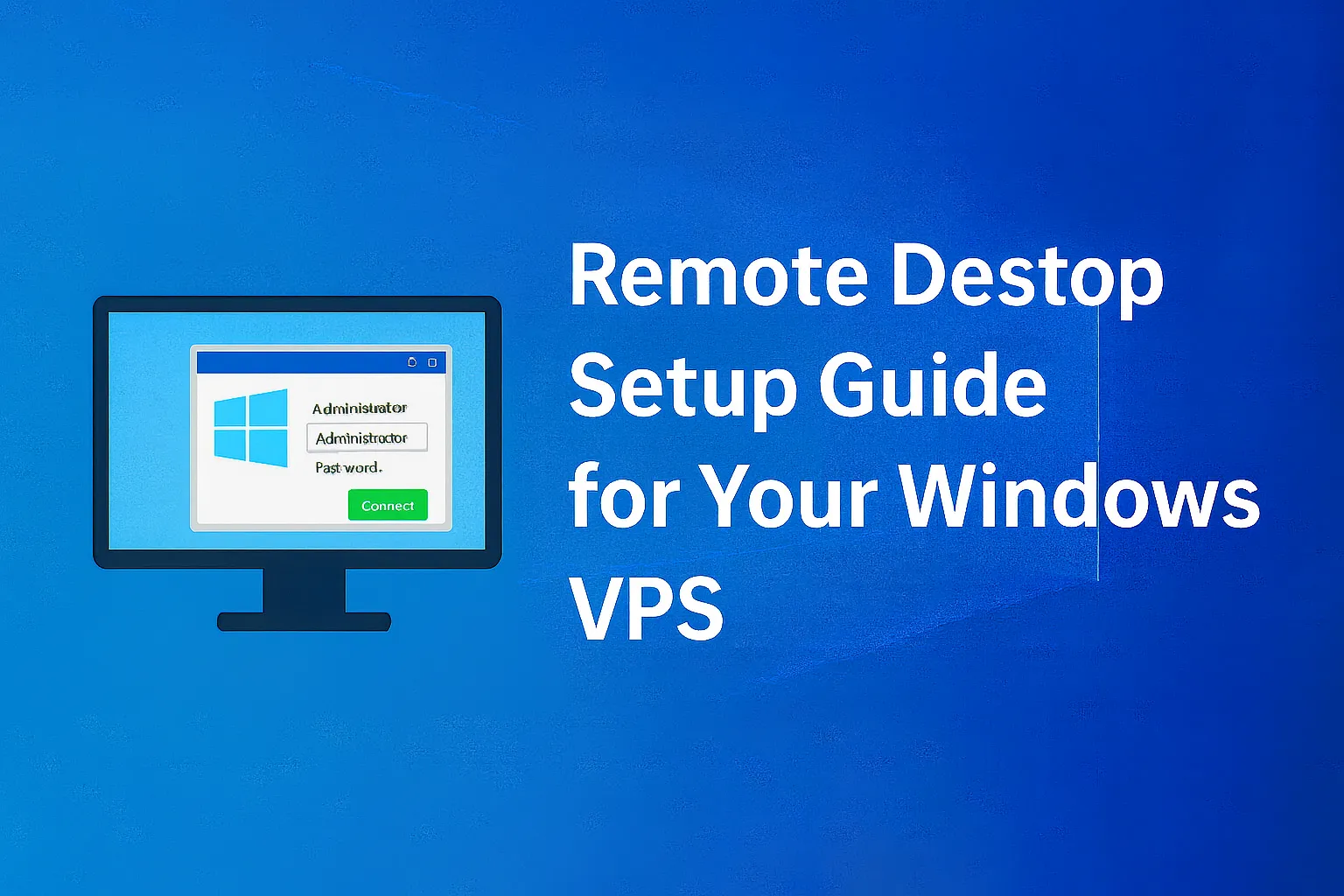
One of the key advantages of using a Windows VPS is the ability to access your server remotely via Remote Desktop Protocol (RDP). Whether you’re managing business applications, internal systems, or development environments, RDP makes it easy to connect from anywhere.
In this guide, we’ll walk you through how to connect to your Winserver VPS using Remote Desktop — step by step.
What You Need Before You Start
To connect via Remote Desktop, you’ll need:
- A Windows VPS from Winserver
- The IP address of your VPS
- Your administrator username and password
- (Optional) VPN connection details — required for SSD-4G plans and above with pre-installed VPN
Step 1: (If Applicable) Connect to VPN
If your VPS plan includes a pre-installed VPN (SSD-4G or higher), you must first connect to the private VPN before accessing your server.
How to connect:
- Download the SoftEther VPN client (or your preferred VPN client).
- Import the VPN connection file provided by Winserver.
- Log in using the credentials sent to your registered email.
- Once connected, continue to Step 2.
If you need a more detailed walkthrough for setting up the SoftEther VPN client with your Winserver VPS, see the step-by-step guide below.
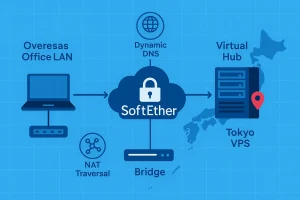
For organizations that need a more advanced, site-to-site VPN setup between offices and a Japan-based VPS, the guide below is a helpful next step.
Step 2: Open Remote Desktop on Your Local PC
On Windows:
- Press
Windows + R, typemstsc, and press Enter. - In the Remote Desktop Connection window, enter your VPS IP address.
- Click “Connect”.
On macOS:
- Download the Microsoft Remote Desktop app from the App Store.
- Add a new PC using the VPS IP and credentials.
- Connect and authenticate.
Step 3: Enter Your Credentials
When prompted:
- Username: Usually Administrator
- Password: Use the password provided by Winserver
✅ Tip: You can check “Remember me” to save login credentials for future use.
Step 4: You’re In! Start Managing Your VPS
Once connected, you’ll see the Windows Server desktop. From here you can:
- Install software
- Upload/download files
- Configure firewall settings
- Run updates
- Set up services like web servers, databases, or email
It’s just like using a regular Windows PC — but in the cloud.
Troubleshooting Tips
| Issue | Solution |
|---|---|
| Can’t connect to VPS | Make sure VPN is connected (if required) |
| Wrong credentials | Double-check your username/password |
| RDP port blocked | Ensure TCP port 3389 is open in firewall |
| Slow performance | Test your local connection speed or switch to a wired connection |
If you still have trouble, contact Winserver support for assistance.

Security Recommendations
- Change the default administrator password after first login
- Keep Windows updated
- Use VPN or IP restrictions to limit access
- Set up regular backups and monitoring
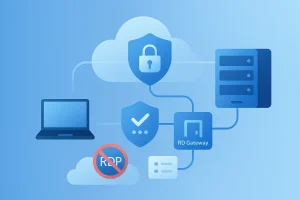
If you want to harden your Remote Desktop access even further — with best practices for ports, authentication, and access control — the article below covers RDP security in more depth.

Conclusion
With Remote Desktop, you can access your Japan-based Windows VPS from anywhere in the world — securely and efficiently.
If you’re using one of our VPN-ready VPS plans, your server is protected from public exposure and ready to connect.
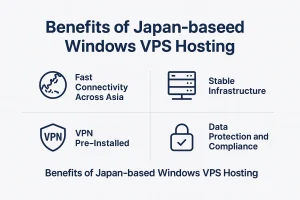
To learn more about why a Japan-based Windows VPS is a strong choice for performance, reliability, and compliance, see the overview below.