

In 2026, running Remote Desktop Services (RDS) without multi-factor authentication (MFA) is no longer a viable security strategy. Exposed RDP endpoints are still being scanned around the clock, credential stuffing attacks are automated, and leaked passwords are traded as commodities. Even with strong password policies in place, a single compromised account can be enough to unlock critical systems, source code, or production databases.
This article is a practical guide for IT, security, and infrastructure teams that need to bring their RDS environments up to current expectations.
We start with the building blocks of RDS—RD Gateway, Connection Broker, Session Hosts, and the underlying identity systems—then walk through proven MFA architecture patterns such as RD Gateway with RADIUS-backed MFA, VPN-based approaches, and zero-trust-inspired designs.
You will also see how to plan your MFA strategy around business requirements and user experience, how to secure RDS with MFA on Windows Server 2022, and how a Japan Windows VPS can provide a secure, low-latency base for your deployment.
Finally, we cover operational best practices so MFA strengthens your security posture without breaking your remote access workflows.
Why MFA for Remote Desktop Services Is Non-Negotiable in 2026
Remote Desktop Services (RDS) continues to be one of the most attractive targets for attackers in 2026. Exposed RDP endpoints are constantly scanned across the internet, credential stuffing attacks are automated, and leaked passwords are easy to weaponize. Even if you enforce long, complex passwords, a single compromised credential can still grant full access to a user’s remote desktop session and, from there, to internal systems.
Multi-factor authentication (MFA) raises the bar significantly by requiring users to prove “something they have” or “something they are” in addition to “something they know”. When implemented correctly, MFA reduces the risk of account takeover, limits the blast radius of credential leaks, and is now a standard part of Microsoft’s guidance for securing RDS deployments, rather than an optional add-on.
For IT, security, and development teams, the business case is straightforward: if RDS is used to access production workloads, source code, or sensitive corporate data, password-only authentication is no longer defensible. Regulators, customers, and cyber-insurance providers increasingly expect MFA for remote access as a baseline control.
Understanding the Building Blocks: RDS, Gateways, Identity, and MFA
Core RDS Components: RD Gateway, Connection Broker, Session Hosts
Before deciding where and how to enforce MFA, it is useful to revisit the main components of a typical Remote Desktop Services deployment:
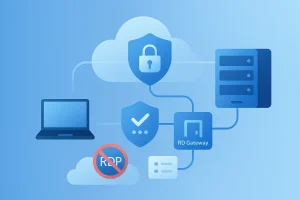
- Remote Desktop Gateway (RD Gateway): Acts as a secure HTTPS proxy between external clients and internal RDS resources. It terminates TLS connections and can integrate with RADIUS servers and Network Policy Server (NPS) policies to enforce MFA before a session is established.
- Remote Desktop Connection Broker: Manages session persistence and load balancing, directing users to the correct session host or an existing session.
- Remote Desktop Session Hosts: Host user sessions and run applications or full desktops. These servers are often joined to an on-premises Active Directory domain.
From an MFA perspective, the RD Gateway is a natural enforcement point because it is the central entry point for external access and already integrates with RADIUS and policies defined on a Network Policy Server (NPS).
Identity, Authentication, and MFA Factors in 2026
Modern RDS environments rarely rely on local accounts alone. Instead, authentication is typically tied to one or more of the following:
- On-premises Active Directory (AD) for traditional domain-joined RDS deployments.
- Microsoft Entra ID (formerly Azure AD) for cloud-based identities, Conditional Access policies, and modern authentication controls.
- RADIUS / NPS as an abstraction layer that connects RD Gateway to cloud MFA providers like Microsoft Entra multifactor authentication via the NPS extension.
On top of these identity systems, organizations can choose from multiple MFA factors:
- Authenticator apps and push notifications on smartphones.
- One-time passcodes (OTP) delivered via app, hardware token, or (as a weaker fallback) SMS or email.
- FIDO2 security keys and smart cards, which provide strong phishing-resistant authentication.
- Biometric verification such as fingerprint or face recognition on managed devices.
By 2026, many organizations will have adopted authentication apps and FIDO2 security keys due to their superior resilience against phishing attacks and user experience, retaining SMS-based one-time passwords (OTPs) solely as a backup method.
Architecture Patterns for RDS + MFA in 2026
RD Gateway with RADIUS-Based MFA (On-Prem or VPS)
One of the most common architectures is to enforce MFA directly at the RD Gateway using RADIUS:
- The user launches the Remote Desktop client and connects over HTTPS to the RD Gateway endpoint.
- The RD Gateway forwards the authentication request to an a Network Policy Server (NPS) RADIUS server.
- The NPS server, extended with the Microsoft Entra MFA NPS extension or a third-party MFA plug-in, triggers an MFA challenge (push, OTP, hardware token, and so on).
- If the MFA challenge succeeds and the access policy allows it, NPS returns an Access-Accept to the RD Gateway.
- The RD Gateway then forwards the connection to the appropriate RDS resource (session host or RemoteApp).
This pattern is attractive because it:
- Centralizes MFA enforcement at a single entry point.
- Works with on-premises servers, cloud VMs, or Windows VPS instances as long as connectivity between RD Gateway and NPS exists.
- Lets you reuse existing AD identities while adding cloud-based MFA as a second factor.
For organizations using a Japan Windows VPS, RD Gateway and NPS can both run inside the Japan data center, minimizing latency between the gateway and session hosts while still connecting to a cloud MFA service over the internet.
Network-Level and Zero-Trust-Inspired Approaches (VPN, Conditional Access, Restricted Entry Points)
Another family of architectures focuses on restricting network access before users even reach the RDS layer:
- VPN with MFA at the edge: Users authenticate with MFA to a VPN gateway. Only then do they gain access to internal RDS endpoints. This avoids exposing RD Gateway directly to the internet but adds an extra hop and requires VPN clients and configuration.
- Zero-trust-inspired designs: Instead of relying solely on a “trusted internal network,” access is controlled by Conditional Access policies, device compliance checks, and per-app access controls. In cloud environments, similar approaches are used to secure Azure Virtual Desktop and Windows cloud PCs with Microsoft Entra Conditional Access.
- Restricted entry points: Whether using VPN, RD Gateway, or a reverse proxy, you keep the number of exposed endpoints minimal, protect them with MFA, and monitor them closely.
These approaches can be combined. For example, some organizations require MFA at the VPN and then apply an additional MFA challenge or Conditional Access requirement at the RDS entry point for high-risk users or privileged sessions.
Planning Your MFA Strategy for RDS: Requirements, Risk, and UX
Mapping Requirements and Choosing Where to Enforce MFA
Before choosing a specific MFA product or deployment model, you should understand what you are trying to protect and what constraints you operate under. Key questions include:
- Which systems are accessible via RDS (production databases, source code repositories, ERP, game servers, internal tools)?
- Who uses RDS (developers, external contractors, support staff, executives) and from where (home, branch offices, overseas, mobile networks)?
- What are your regulatory and contractual obligations (e.g., PCI DSS, ISO 27001, customer security questionnaires)?
- What identity platforms are already deployed (on-premises AD only, Microsoft Entra ID hybrid, other IdPs)?
Once requirements and risks are clear, you can decide where to enforce MFA:
- At the RD Gateway via RADIUS/NPS, providing a single control point for all external RDS connections.
- At the network perimeter via VPN gateways, especially when RDS is only one of several remote access methods.
- At the identity layer via Conditional Access policies that govern sign-ins to RDS-adjacent services or application proxies.
In many enterprise environments, RD Gateway plus RADIUS-based MFA is a pragmatic starting point because it integrates well with existing AD and does not require redesigning the entire remote access architecture.
Designing for User Experience and Supportability
Even the strongest MFA design will fail if it causes constant friction for users or overwhelms your support team. When planning the user experience:
- Prefer MFA methods that users already know from other corporate systems (for example, the same authenticator app used for SaaS sign-ins).
- Minimize redundant prompts by aligning session timeouts and reauthentication settings where possible.
- Provide clear documentation and short how-to guides for common scenarios (first enrollment, device change, backup methods).
- Define emergency access procedures for critical staff (e.g., on-call engineers) if their primary MFA device is unavailable.
It is also important to ensure that helpdesk staff have the tools and permissions to safely assist users (resetting MFA, issuing temporary bypass codes) without bypassing security policy entirely.
Step-by-Step Example: Securing RDS with MFA on Windows Server 2022
The exact configuration steps will vary by environment and MFA provider, but the following example outlines a typical pattern using Windows Server 2022, RD Gateway, and a cloud-based MFA service integrated through NPS. Microsoft now provides official planning guidance for integrating MFA with RDS, and you should always cross-check your design against the latest documentation.
Integrating RD Gateway with RADIUS-Backed MFA
At a high level, the integration flow looks like this:
- Prepare the base environment:
Install and fully patch Windows Server 2022, configure RDS roles (RD Gateway, Connection Broker, Session Host), and ensure that TLS certificates on the RD Gateway are valid and trusted. - Deploy and configure NPS:
Install the Network Policy Server role on one or more servers. Configure RADIUS clients for the RD Gateway and define network policies that control who can connect. - Install the MFA extension or plug-in:
For Microsoft Entra MFA, install the NPS extension and bind it to your Entra tenant. For third-party MFA, follow the vendor’s instructions for integrating with NPS or RD Gateway. - Update RD CAP policies:
Verify that Remote Desktop Connection Authorization Policies are configured to use the NPS server as the policy decision point, so that access is contingent on successful MFA. - Harden RDP exposure:
Restrict inbound network access to the RD Gateway only (no direct RDP from the internet), enforce Network Level Authentication (NLA), and consider IP restrictions for high-risk environments.
This design keeps your MFA logic and policies centralized on NPS while allowing RD Gateway to remain relatively simple.
Testing and Rolling Out MFA Without Disrupting the Business
To avoid breaking remote access for your organization, treat MFA deployment as a controlled change:
- Start with a pilot group of IT staff and technically confident users.
Validate that all required workflows (for example, access from overseas and from different client devices) function correctly. - Monitor logs on RD Gateway, NPS, and your MFA service for failed authentications, latency, or configuration errors.
Address issues before expanding the rollout. - Communicate clearly with users about timelines, enrollment steps, and what to expect during sign-in.
- Introduce MFA in phases (by department, by region, or by user role) rather than enabling it for everyone at once.
- Define rollback options so that, in case of unexpected outages, you can temporarily relax MFA enforcement while still keeping some protections in place.
By taking a phased approach, you reduce the risk of business disruption and build confidence in the new security controls.
Using a Japan Windows VPS as a Secure Base for RDS + MFA
Why a Japan VPS Is a Strong Base for RDS
A Japan Windows VPS can be an effective foundation for RDS with MFA, especially for organizations whose users, systems, or customers are concentrated in or near Japan. Hosting your RD Gateway and Session Hosts in a Japan data center offers several practical advantages:
- Lower latency for users connecting from Japan or nearby regions, improving the responsiveness of remote desktops and applications.
- Stable connectivity through a professionally managed data center environment, removing dependence on on-premises office lines.
- Network separation between your on-premises infrastructure and the internet-facing RDS environment, which can reduce the blast radius if a security incident occurs.
- Flexible scaling of compute resources as the number of remote users or workloads grows.
For global teams, a Japan Windows VPS is particularly useful when developers, offshore teams, or remote staff need performant access to systems that reside in Japan or must stay in the country for compliance reasons.
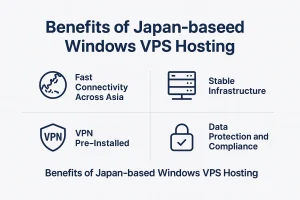
Example RDS + MFA Deployment on a Japan Windows VPS
The following is a conceptual example of how you might use a Japan Windows VPS as the base for an RDS + MFA deployment:
- Provision one or more Windows VPS instances in a Japan data center. Assign static IP addresses and configure appropriate firewall rules.
- Deploy RD Gateway and Remote Desktop Session Host roles on these VPS instances (or separate them across servers depending on scale and security requirements).
- Join the VPS servers to your on-premises AD domain over a secure site-to-site VPN or dedicated private connectivity, or integrate with Microsoft Entra ID–based authentication depending on your identity strategy.
- Install and configure NPS (either on a VPS or on-premises), then integrate it with Microsoft Entra MFA or a supported third-party MFA provider.
- Point the RD Gateway to the NPS server as a RADIUS client and configure policies to require MFA for all external connections.
- Restrict inbound access to the RD Gateway endpoint, and optionally limit source IP ranges to known office locations, VPN egress IPs, or partner networks.
Before going into production, always validate that your architecture complies with licensing terms for Windows Server, RDS Client Access Licenses (CALs), and any third-party MFA components. When in doubt, consult the official product documentation and your licensing provider.
Common Pitfalls and Operational Best Practices
Beyond “MFA-Only”: Defense in Depth, Monitoring, and Regular Reviews
MFA is a critical control, but it is not a silver bullet. Organizations that stop at MFA and neglect other aspects of RDS security remain exposed to a variety of risks, including exploitation of unpatched vulnerabilities and misuse of legitimate sessions.
To build a more resilient remote access environment:
- Keep RDS components fully patched, including Windows Server, RD Gateway, and NPS. Subscribe to security advisories and plan for timely patch deployment.
- Enforce least privilege by limiting administrative access, separating administrative accounts from regular user accounts, and avoiding local admin rights on session hosts.
- Apply network segmentation, ensuring that RDS hosts cannot freely reach all internal systems. Use firewalls and access controls to limit lateral movement.
- Monitor and log RDP sign-ins, MFA challenges, and unusual access patterns. Where possible, integrate your logs into a SIEM or central logging platform.
- Review policies regularly, including who is allowed to use RDS, which MFA methods are permitted, and which devices are trusted.
Handling Lockouts, Device Changes, and On-Call Emergencies
Operational edge cases can undermine even the best-designed MFA deployment if they are not anticipated:
- MFA lockouts and lost devices: Define a clear, auditable process for resetting MFA when users lose their phones or tokens. Implement backup methods such as secondary factors or temporary codes with strict time limits.
- Device lifecycle events: When users replace smartphones or laptops, ensure there is guidance on re-enrolling authenticator apps or security keys before the old device is wiped.
- On-call and emergency access: For critical staff (e.g., SREs, DBAs, senior developers), consider pre-provisioned backup factors or hardware tokens stored in secure locations so they can still respond to incidents if primary devices are unavailable.
- Joiner / mover / leaver processes: Integrate MFA enrollment and RDS access provisioning into HR and identity lifecycle workflows to avoid orphaned access.
By thinking through these operational details up front, you avoid creating pressure to disable or weaken MFA when things go wrong.
Summary and Next Steps for Your RDS Environment
In 2026, implementing MFA for Remote Desktop Services is no longer a “nice to have” but a baseline requirement for secure remote access. Attackers continue to target RDP, and password-only defenses are not sufficient.
This article has covered:
- Why MFA is essential for RDS and how it fits into broader security guidance.
- The building blocks of RDS architectures, including RD Gateway, identity systems, and MFA factors.
- Common architecture patterns such as RD Gateway + RADIUS-backed MFA, VPN-based approaches, and zero-trust-inspired designs.
- How to plan your MFA strategy with a focus on requirements, risk, and user experience.
- A conceptual step-by-step example for Windows Server 2022.
- How a Japan Windows VPS can serve as a secure and performant base for RDS + MFA.
- Operational best practices and pitfalls to avoid, so MFA strengthens your security posture without breaking your remote access workflows.
As a practical next step, many organizations start with a small pilot: deploy or refactor RD Gateway to integrate with an MFA-enabled NPS server, use a Japan Windows VPS as a test environment if you need low-latency access to Japanese systems, and refine the configuration based on user feedback and monitoring data before rolling out widely.
From there, you can iterate toward a more mature remote access strategy, integrating Conditional Access, device compliance checks, and deeper monitoring to support production workloads and global teams.
FAQ
Q1. Why do I need MFA for Remote Desktop Services in 2026?
A1. In 2026, exposed RDP endpoints are continuously scanned and password-only defenses are no longer sufficient. Implementing MFA for Remote Desktop Services (RDS) adds an additional factor beyond passwords, significantly reducing the risk of account takeover and helping you meet security expectations from customers, regulators, and cyber-insurance providers.
Q2. Can I use a Japan Windows VPS as an RD Gateway even if my team is overseas?
A2. Yes. A Japan Windows VPS can host RD Gateway, Session Hosts, and related services even if your users are based overseas. This is especially useful when critical systems or data must remain in Japan for latency or compliance reasons. Users connect to the Japan-based RDS environment over the internet or VPN, while MFA at the gateway helps secure remote access.
Q3. Which MFA methods work best for securing RDS?
A3. In most environments, authenticator apps with push notifications and FIDO2 security keys offer the best balance of security and user experience. They provide strong protection against phishing and credential stuffing attacks. SMS-based one-time passcodes can be kept as a backup option, but should not be the primary method for high-risk or privileged accounts.
Secure Your RDS Environment on a Japan Windows VPS
If you are planning to modernize Remote Desktop Services with MFA in 2026, a Japan Windows VPS gives you a stable, low-latency base for RD Gateway, Session Hosts, and supporting services. Explore our Japan VPS plans to choose the right compute and storage resources for your MFA-protected RDS environment, from pilot deployments to production workloads.