


SoftEther VPN Client allows you to connect a Windows PC to a SoftEther VPN Server using connection details provided by Winserver or your VPN server administrator. If you have received a host name or IP address, port number, Virtual Hub name, user name, and authentication information, this guide will walk you through the setup process step by step.
You will learn how to download and install SoftEther VPN Client, create the Virtual Network Adapter required for VPN communication, configure a new VPN connection setting, and connect to the VPN server. We will also show you how to verify the connection from Windows, disconnect when you are finished, and troubleshoot common connection problems.
This guide is designed for users who already have the required VPN connection information and want to configure SoftEther VPN Client on Windows. The exact network configuration and authentication method may vary depending on your VPN server environment, so use the settings provided by Winserver or your server administrator when completing each step.
Before You Start
Before connecting to a SoftEther VPN Server, make sure you have the connection details provided by Winserver or your VPN server administrator.
Before starting the setup, make sure you have the following information available.
| Required Item | What You Need |
|---|---|
| Host Name or IP Address | The address of the VPN server |
| Port Number | The TCP/IP port number configured for the VPN server connection |
| Virtual Hub Name | The name of the Virtual Hub you want to connect to |
| User Name | The user name assigned to your VPN account |
| Password | The password assigned to your VPN account |
If you do not have this information, contact your VPN server administrator before continuing.
Step 1: Download and Install SoftEther VPN Client
First, download and install SoftEther VPN Client on the Windows computer you will use to connect to the VPN server.
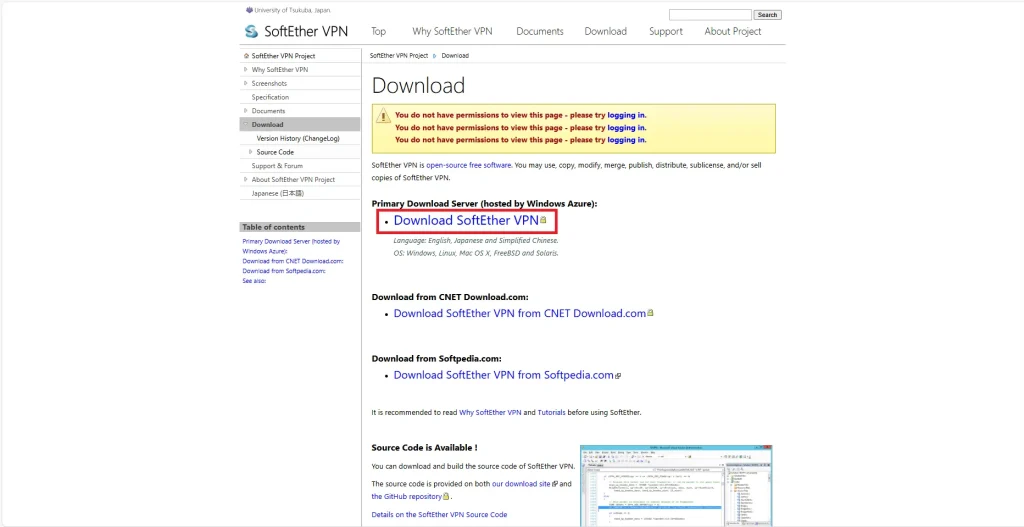
- Open your browser and go to the official SoftEther VPN download website.
- Click Download, then select Download SoftEther VPN.

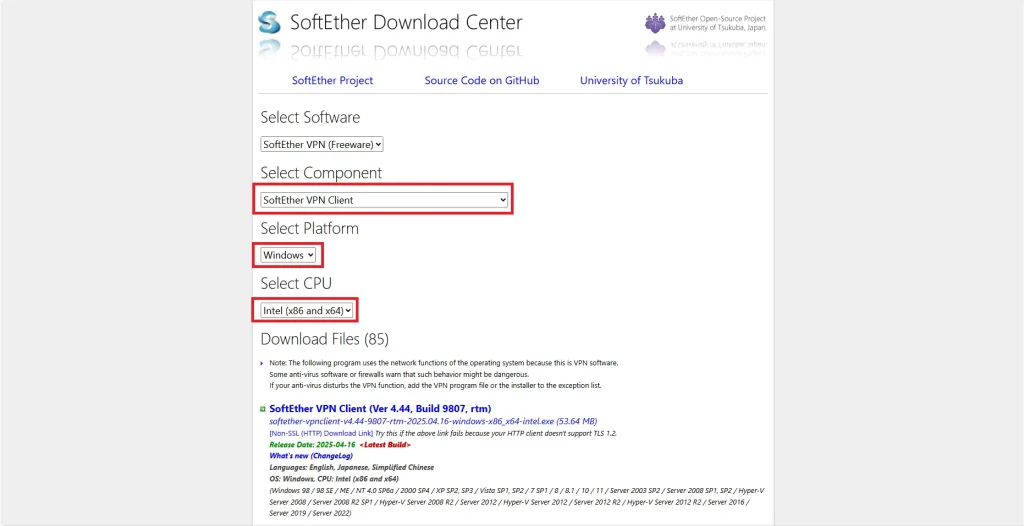
- Under Components, select SoftEther VPN Client.
- Select Windows as the platform, then choose the package that is compatible with your system.
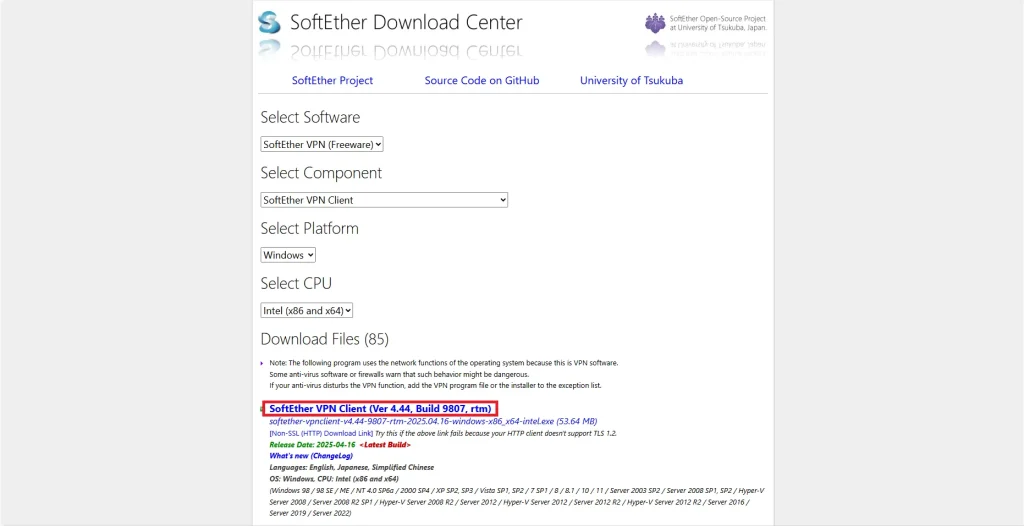
- Select the appropriate release from the file list to start the download.
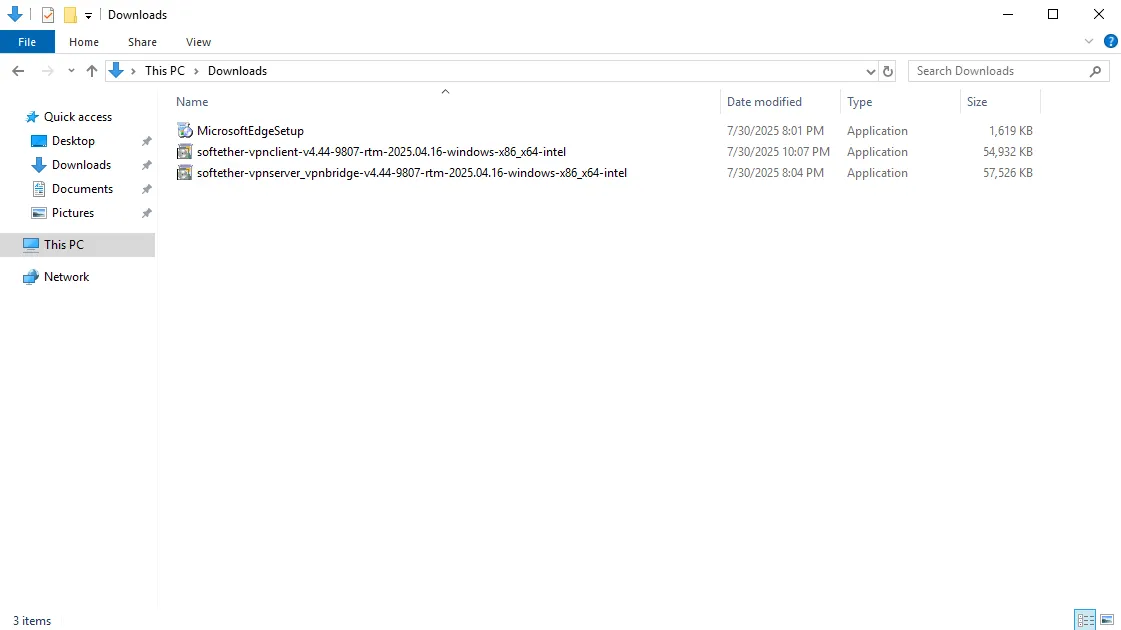
- Once the download is complete, double-click the installer file to start the setup.
- When the setup wizard appears, click Next.
- When prompted to select the software to install, choose SoftEther VPN Client.
- Accept the license agreement, then click Next.
- Review the important notice, then click Next.
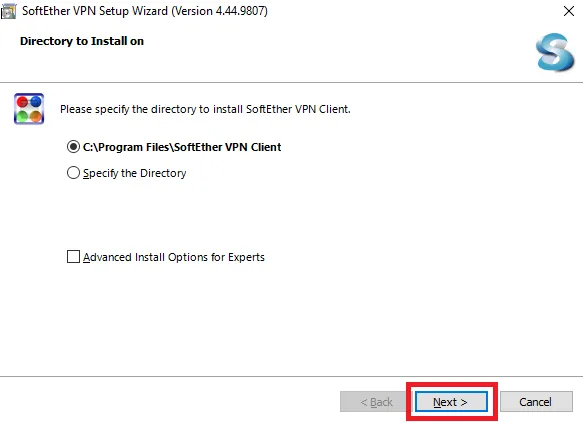
- Confirm or change the installation directory, then click Next.
On the next screen, review the installation settings and click Next to begin the installation. - After the installation is complete, make sure the option to launch SoftEther VPN Client Manager is selected, then click Finish.
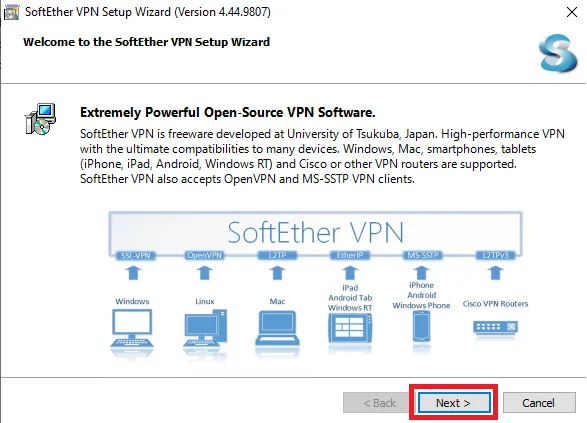
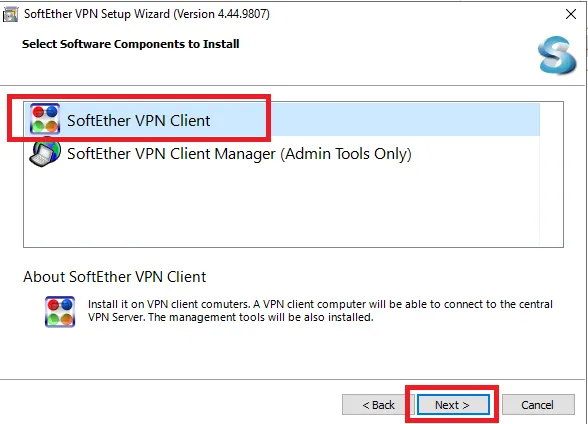
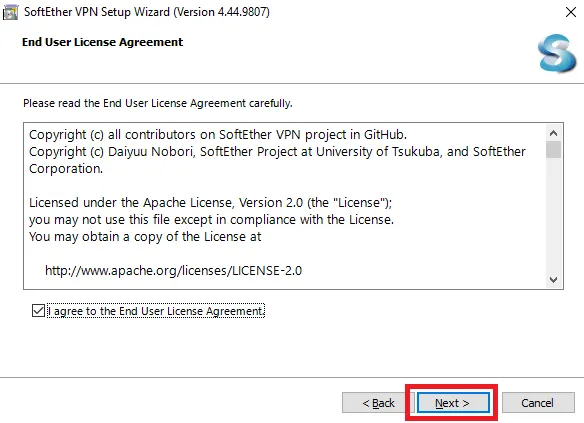
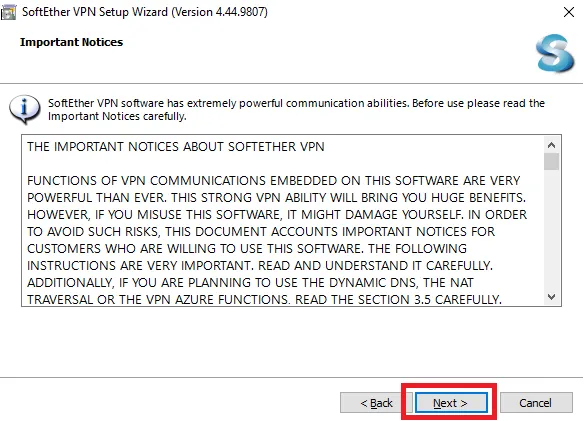
 On the next screen, review the installation settings and click Next to begin the installation.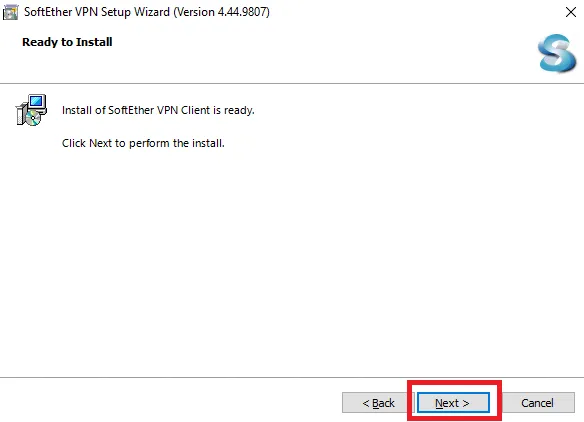
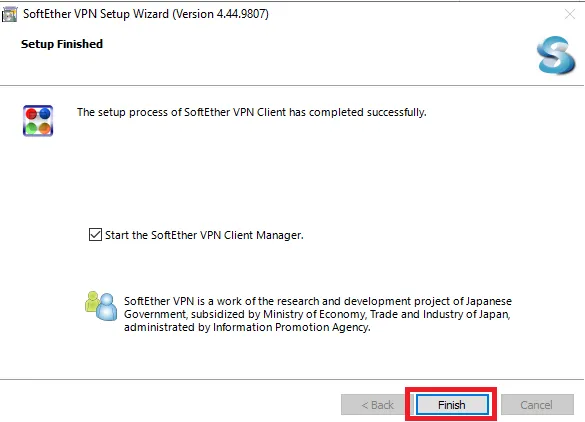
SoftEther VPN Client Manager should now open.
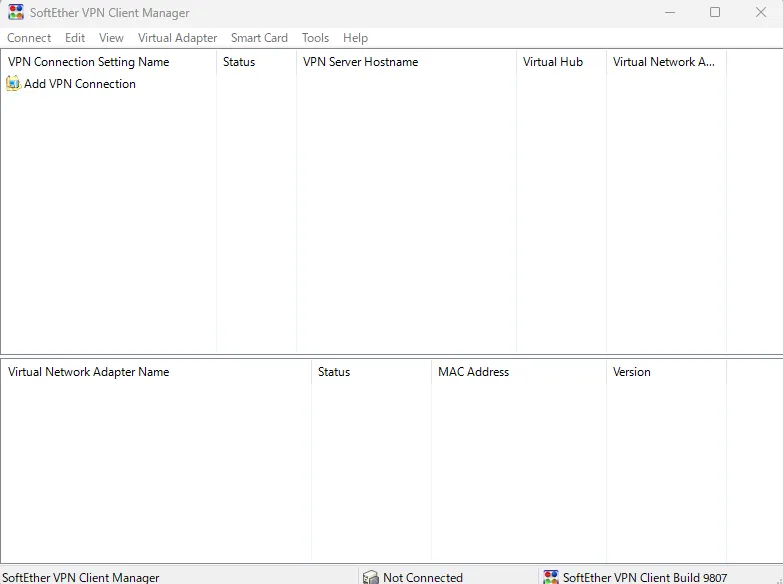
SoftEther VPN Client Manager is the graphical interface used to create VPN connection settings, manage Virtual Network Adapters, and connect to or disconnect from a SoftEther VPN Server.
Step 2: Create a Virtual Network Adapter
SoftEther VPN Client uses a Virtual Network Adapter as the network interface for VPN communication.
If you are setting up SoftEther VPN Client for the first time, you must create a Virtual Network Adapter before creating the VPN connection setting.
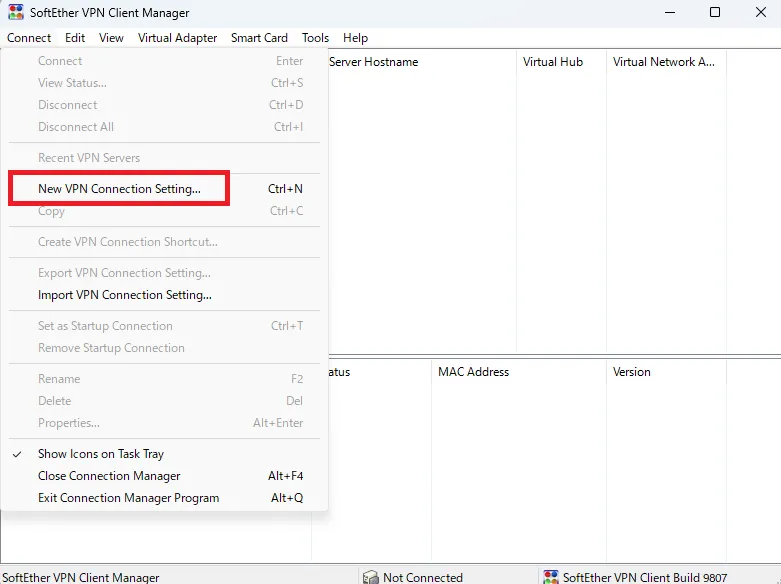
- In VPN Client Manager, click New VPN Connection Setting.
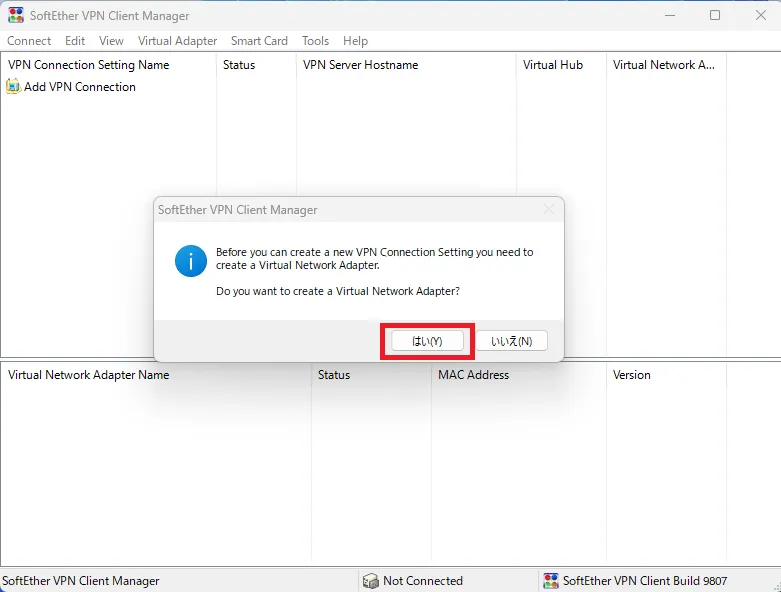
- If prompted to create a Virtual Network Adapter, click Yes.
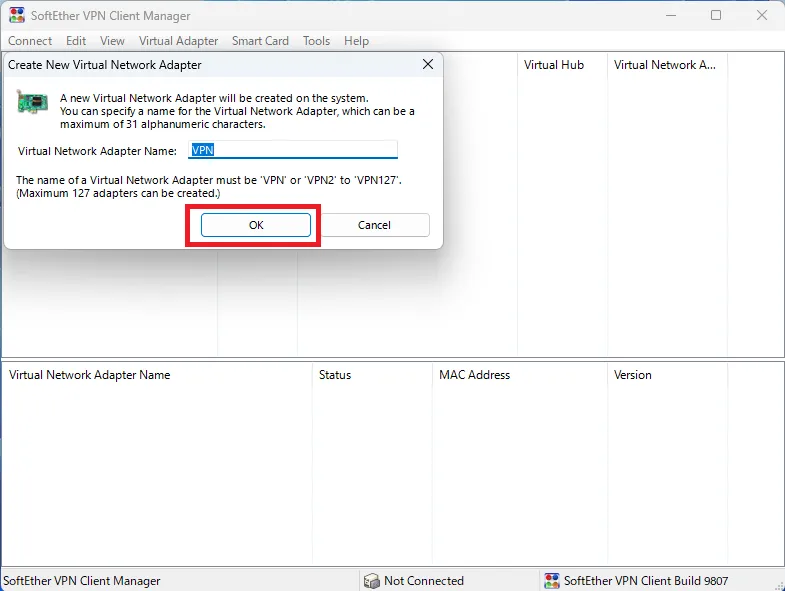
- Enter a name for the Virtual Network Adapter. In this example, leave the default name as VPN, then click OK.
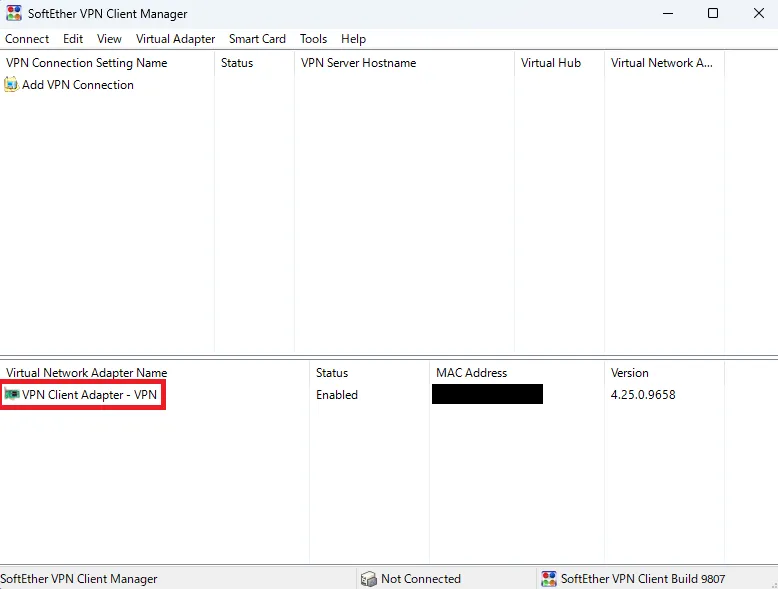
- Confirm that the new Virtual Network Adapter appears in VPN Client Manager.
Step 3: Configure a New VPN Connection Setting
Next, create a new VPN connection setting using the connection details provided by Winserver or your VPN server administrator.
- In VPN Client Manager, double-click New VPN Connection Setting again.
- When the New VPN Connection Setting Properties window appears, enter the required connection details.
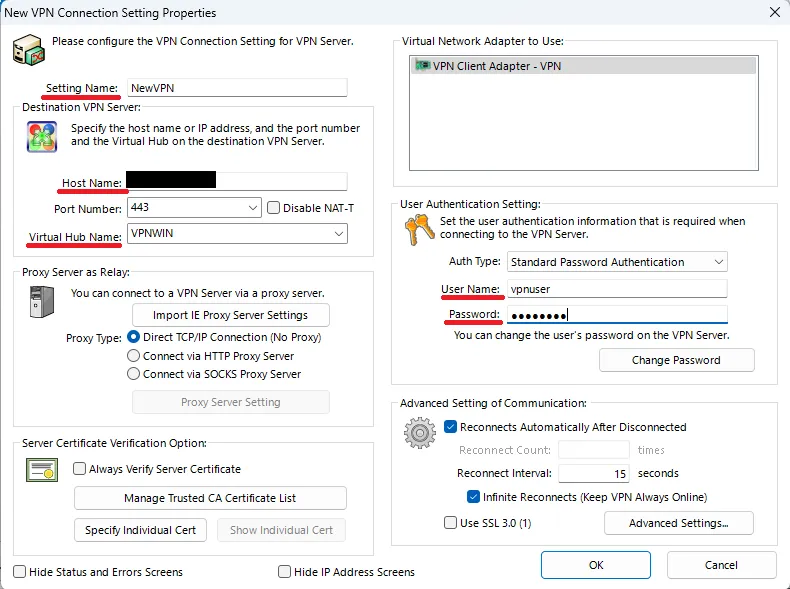
| Setting | What to Enter |
|---|---|
| Setting Name | Any descriptive name you prefer for identifying this VPN connection |
| Host Name | The host name or IP address of the VPN server provided to you |
| Port Number | The port number provided by your VPN server administrator |
| Virtual Hub Name | The Virtual Hub name provided to you |
| Virtual Network Adapter | Select the Virtual Network Adapter created in Step 2 |
| Auth Type | Select the authentication method specified by your VPN server administrator |
| User Name | The user name assigned to your VPN account |
| Password | Enter your VPN password if required by the selected authentication method |
The authentication method you need to select depends on how the VPN server is configured. If your VPN account uses standard password authentication, select Standard Password Authentication and enter your assigned user name and password.
After entering the required information, click OK to save the connection setting.
If your organization needs an always-on connection between an office network and a Japan-based VPS, a site-to-site VPN may be more suitable than a standard client VPN.

Step 4: Connect to the VPN
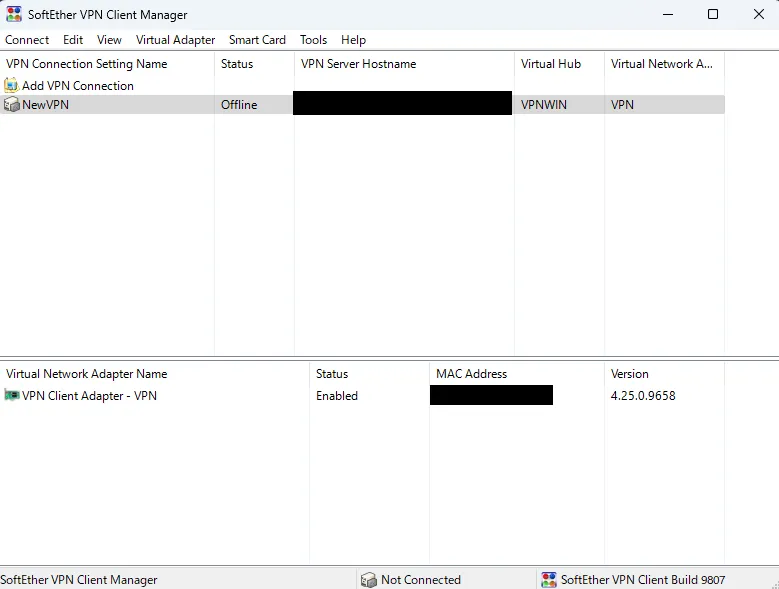
- In VPN Client Manager, double-click the connection setting you created to connect to the VPN server.
- Wait while SoftEther VPN Client establishes the connection.
- Confirm that the connection status shows Connected (Established) in VPN Client Manager.
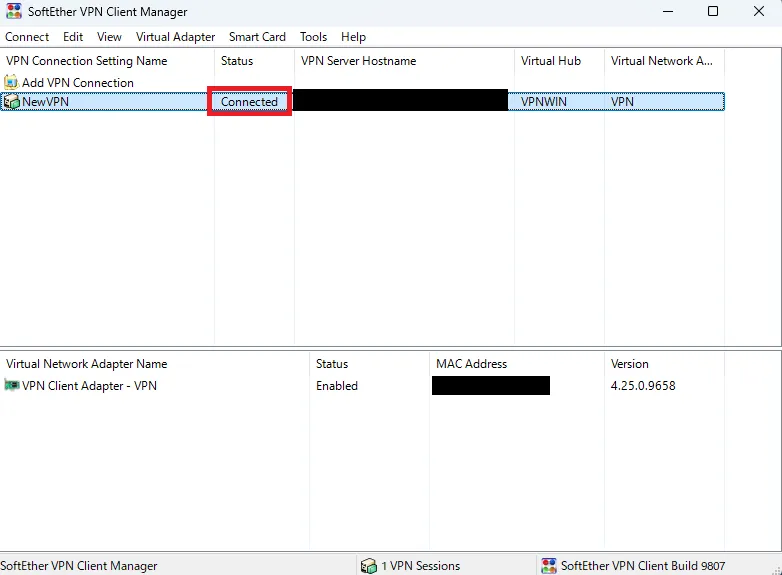
If a DHCP server is available on the connected VPN network, the Virtual Network Adapter can obtain an IP address automatically. The IP addressing and routing configuration depends on how the VPN server environment is configured.
Step 5: Verify the Connection
After establishing the VPN connection, verify the network configuration on your Windows PC.
- Open Command Prompt.
- Run the following command to display detailed network configuration information:
ipconfig /all - Look for the SoftEther Virtual Network Adapter, such as VPN Client Adapter – VPN.
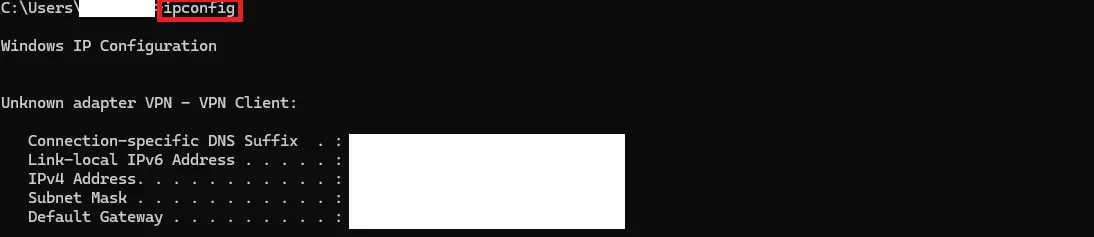
Confirm that the Virtual Network Adapter has the expected IP address, subnet mask, and other network settings for your VPN environment.
You can also verify connectivity by accessing a server, website, or other network resource that should be reachable through the VPN.
If VPN Client Manager shows that the VPN is connected but the destination is still unreachable, check the IP configuration, routing, DHCP settings, NAT configuration, firewall rules, and VPN server settings.
Step 6: Disconnect from the VPN
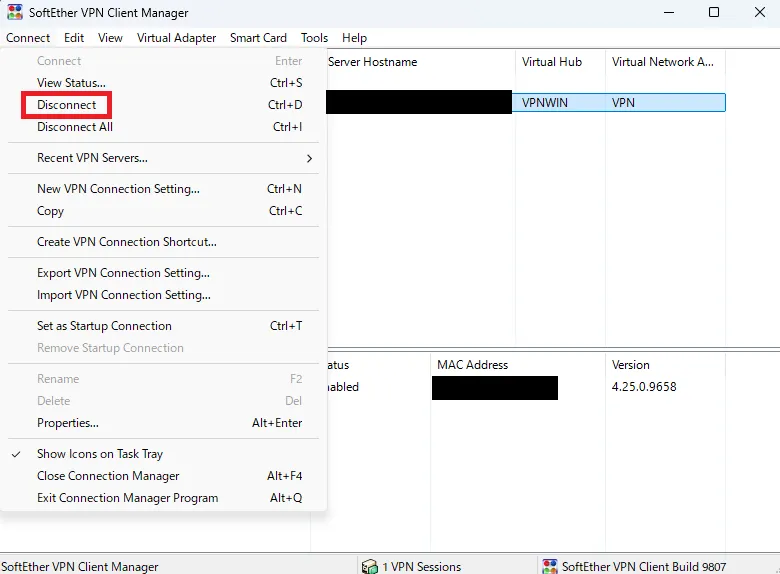
When you no longer need the VPN connection, disconnect it from VPN Client Manager.
- Open SoftEther VPN Client Manager.
- Select the active VPN connection setting.
- From the Connect menu, click Disconnect.
- Confirm that the connection setting returns to Offline status.
Common SoftEther VPN Client Connection Problems
If your SoftEther VPN connection fails, first check the error message displayed in VPN Client Manager, then review the common causes below.
| Problem | What to Check |
|---|---|
| Cannot connect to the VPN server | Check the Host Name or IP address, Port Number, and your internet connection. |
| Authentication failed | Check the User Name, Password, and Auth Type configured for the connection. |
| Virtual Network Adapter is missing | Make sure a Virtual Network Adapter has been created in VPN Client Manager and selected for the connection setting. |
| Connected but cannot access the required network resource | Check the IP configuration, routing, DHCP or NAT settings, firewall rules, and VPN server configuration. |
| VPN server does not respond | Confirm that the VPN server is running and that the configured TCP/IP port is reachable from your network. |
If you received the connection information from Winserver and the settings appear to be correct but you still cannot connect, contact Winserver support and include the error message or error code displayed in VPN Client Manager.
Conclusion
You have now installed SoftEther VPN Client, created a Virtual Network Adapter, configured a VPN connection setting, connected to the VPN server, and verified the connection on Windows.
After the initial setup, you can reconnect at any time by opening SoftEther VPN Client Manager and double-clicking the saved connection setting.
If you use the VPN to access a Windows VPS, you may next want to connect to the server using Remote Desktop. If you are not familiar with RDP, see the following guide.

Before using Remote Desktop in a production environment, review its security settings, including authentication and firewall rules.

FAQ
What is SoftEther VPN Client Manager?
SoftEther VPN Client Manager is a Windows-based graphical interface used to control SoftEther VPN Client. You can use it to create Virtual Network Adapters, configure VPN connection settings, connect to a SoftEther VPN Server, and disconnect from it.
Do I need a Virtual Network Adapter to use SoftEther VPN Client?
Yes. SoftEther VPN Client uses a Virtual Network Adapter as the Windows network interface for VPN communication. A Virtual Network Adapter must be created before it can be selected for a VPN connection setting.
What information do I need to connect to a SoftEther VPN Server?
You typically need the VPN server host name or IP address, port number, Virtual Hub name, user name, and the authentication method specified by your VPN server administrator. Depending on the authentication method, you may also need a password, certificate, or other credentials.
Why does SoftEther VPN Client show an authentication error?
An authentication error can occur when the user name, password, authentication method, or other credentials do not match the settings configured on the VPN server. Review the connection information provided by Winserver or your VPN server administrator.
What is the difference between VPN Client Manager and VPN Server Manager?
VPN Client Manager is primarily used to configure and operate SoftEther VPN Client on the client side, including creating connection settings and connecting to a VPN server. VPN Server Manager is an administration tool used to configure and manage SoftEther VPN Server or SoftEther VPN Bridge.
Build Your VPN Environment on a Japan VPS
If you need a Japan-based server for secure remote access, business applications, or your own SoftEther VPN environment, explore Winserver’s Japan VPS plans and choose the resources that fit your workload.