

SoftEther VPN Server is a practical option when you want to build your own VPN environment on a Windows VPS. It supports multiple VPN protocols, offers a graphical management tool, and gives administrators more direct control over remote access than a consumer-style VPN solution.
In this guide, you will learn how to install SoftEther VPN Server on a Windows VPS, complete the initial configuration, and perform basic security and connectivity checks. The article focuses on the server side of the setup, including the correct package selection, administrator password setup, Virtual Hub creation, and early firewall review.
This guide is especially useful if you want an always-on Windows environment that can be managed through Remote Desktop, or if you need a server in Japan for business operations, testing, or region-specific workflows. If your goal is to create a stable SoftEther VPN Server environment on a Windows VPS, this article will help you get started with a clean and practical foundation.
What This Guide Covers
SoftEther VPN Server vs. SoftEther VPN Client
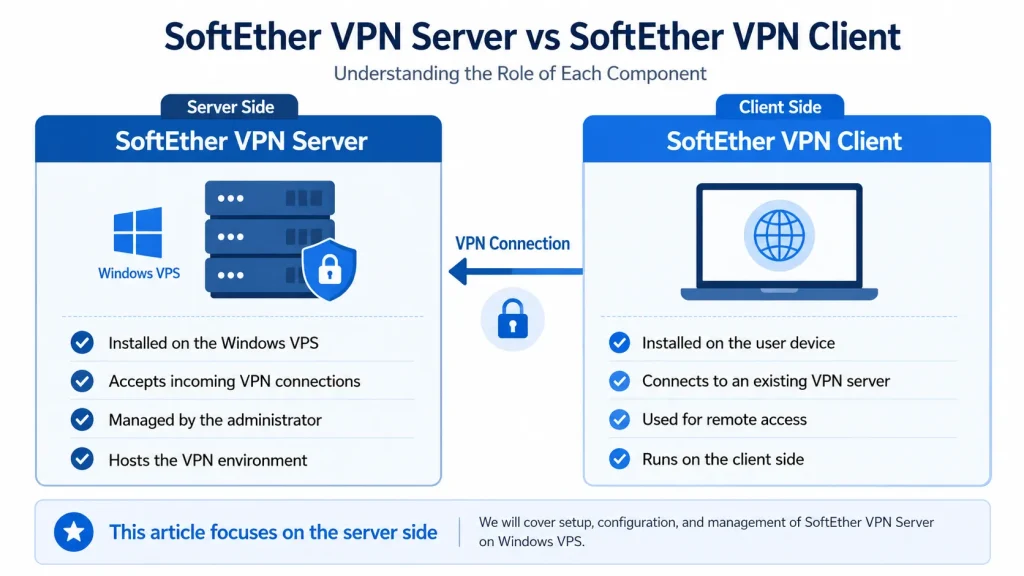
Before you begin, it is important to understand the difference between the two main SoftEther components. SoftEther VPN Server is the software that accepts incoming VPN connections, while SoftEther VPN Client is installed on a user device to connect to an existing VPN server.
This distinction matters because many readers search for “SoftEther setup” without realizing that the term can refer to two very different use cases. Some want to host their own VPN server, while others simply want to connect to an existing one. This article focuses only on the server side. The goal is to install the VPN service on your Windows VPS, launch the management tool, and complete the initial configuration.
When to Use a Windows VPS for SoftEther VPN Server
A Windows VPS is a practical choice when you need an always-on system that is easy to manage remotely. It is especially useful if your environment already depends on Windows administration, if you prefer graphical server tools, or if you want to use Remote Desktop for ongoing maintenance.
For users targeting Japan-facing operations, a Windows VPS in Japan can also provide a stable platform in the right region. Instead of relying on a consumer-grade solution, you can build a server environment that you control directly and manage over the long term.
Why Choose a Japan-Based Windows VPS
What You Need Before Installation
A Windows VPS with Remote Desktop Access
The first requirement is a Windows VPS that you can already access through Remote Desktop. You should be able to sign in with an administrator account, open system settings, and install applications normally. If you have not completed your initial RDP setup yet, do that before moving on to the VPN layer.
Remote Desktop Setup Guide for Your Windows VPS
It is also a good idea to confirm the basic VPS conditions in advance, including the Windows version, available memory, firewall status, and whether your hosting environment has any network restrictions that could affect inbound connections.
Administrator Access and Basic Network Checks
SoftEther VPN Server installation is straightforward, but you still need the right permissions and a few basic checks. Make sure you have:
- Administrator rights on the Windows VPS
- The ability to download and install software
- Access to Windows Defender Firewall or equivalent settings
- Basic awareness of which ports you intend to expose
You do not need advanced networking skills to begin, but you should understand that a VPN server must accept inbound connections. Installation is only one part of the process. You should also review listening ports, firewall rules, and the initial authentication setup carefully.
How to Install SoftEther VPN Server on a Windows VPS
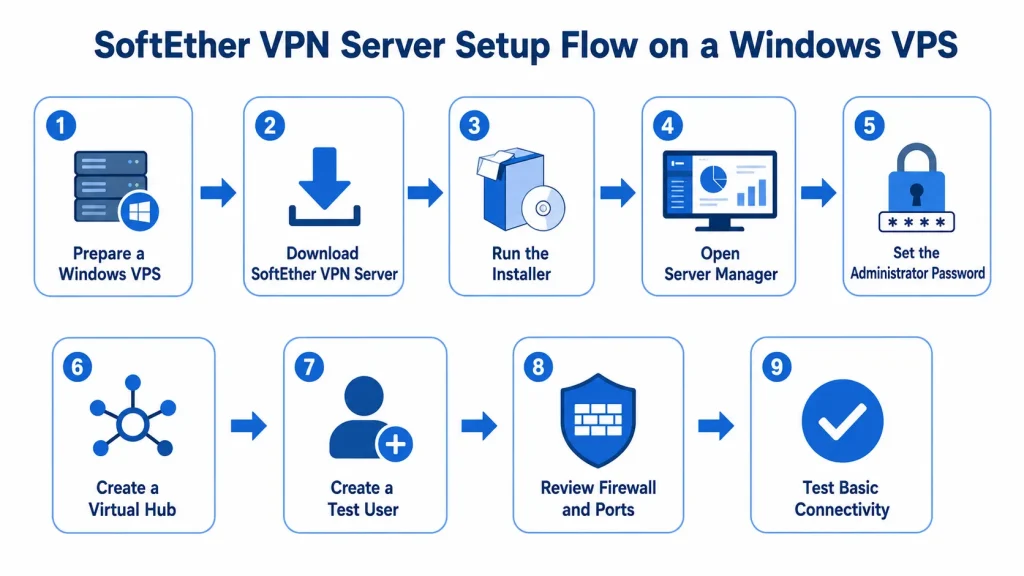
Downloading the Correct Package
Start by downloading the correct SoftEther VPN Server package for your Windows environment. Be careful at this stage, because SoftEther provides multiple components, including the client software and management tools. For this guide, you need the package for SoftEther VPN Server on Windows.
When selecting the installer, double-check the component and platform so that you do not accidentally download SoftEther VPN Client or another package instead. This is one of the most common setup mistakes, especially for users who are new to the SoftEther product family.
Running the Installer
After downloading the installer to your Windows VPS, run it as an administrator. The installation wizard is straightforward and guides you through the main steps. Accept the license terms, confirm the installation location, and continue with the default or planned installation path.
In many standard VPS environments, the installation is completed quickly. At this stage, the objective is simply to install the base VPN server software correctly. You do not need to configure advanced bridging, custom VPN topology, or multi-site architecture yet. Those can be addressed later, after the base server is running properly.
Confirming the Installation
After the installation is complete, confirm that SoftEther VPN Server and its management tools are available on the VPS. You should be able to launch SoftEther VPN Server Manager or open the relevant program group from the Start menu.
At this point, the key success criteria are simple:
- The installation completed without errors
- The management utility opens normally
- The VPS remains responsive after installation
If the installer completed successfully but the management tool does not open, verify that the software was installed correctly and that you are logged in with sufficient privileges. If these checks pass, you are ready to move on to the initial configuration.
Initial Setup After Installation
Opening SoftEther VPN Server Manager
With the software installed, the next step is to open SoftEther VPN Server Manager. This tool is used to connect to the local SoftEther VPN Server instance on your Windows VPS and perform the initial administration tasks.
When you launch the manager for the first time, connect to the local server instance if you are working directly on the VPS over Remote Desktop. This allows you to begin configuring the server immediately without using a separate management host.
Setting an Administrator Password
One of the first tasks is to set the server administrator password. This is a critical early step because the server should not remain in an unsecured administrative state after installation.
Choose a strong password and store it securely. A solid administrator password policy is especially important on a public VPS because the server is part of a remotely accessible environment. Even in a test deployment, it is best to approach the initial configuration with production-minded security from the start.
Creating a Virtual Hub and User Account
After administrative access is secured, create your first Virtual Hub. In SoftEther, a Virtual Hub is the logical container where users and connection settings are managed. For a basic setup, a single hub is enough to get started.
Next, create at least one user account for VPN access. Keep the first configuration simple. The goal at this stage is not to build a complex enterprise design, but to create a working baseline that you can test and expand later.
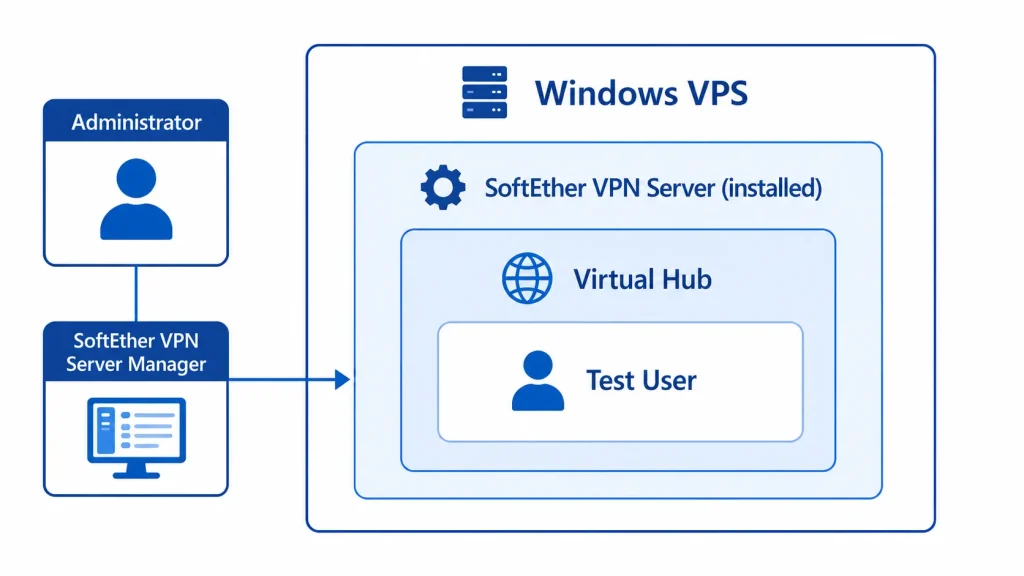
Your first-pass setup should usually include:
- One Virtual Hub
- One user account for testing
- A securely documented administrator password
- A record of the ports you plan to allow through the firewall
This keeps the deployment manageable and makes troubleshooting much easier if something does not work as expected.
Basic Security and Connectivity Checks
Reviewing Ports and Firewall Rules
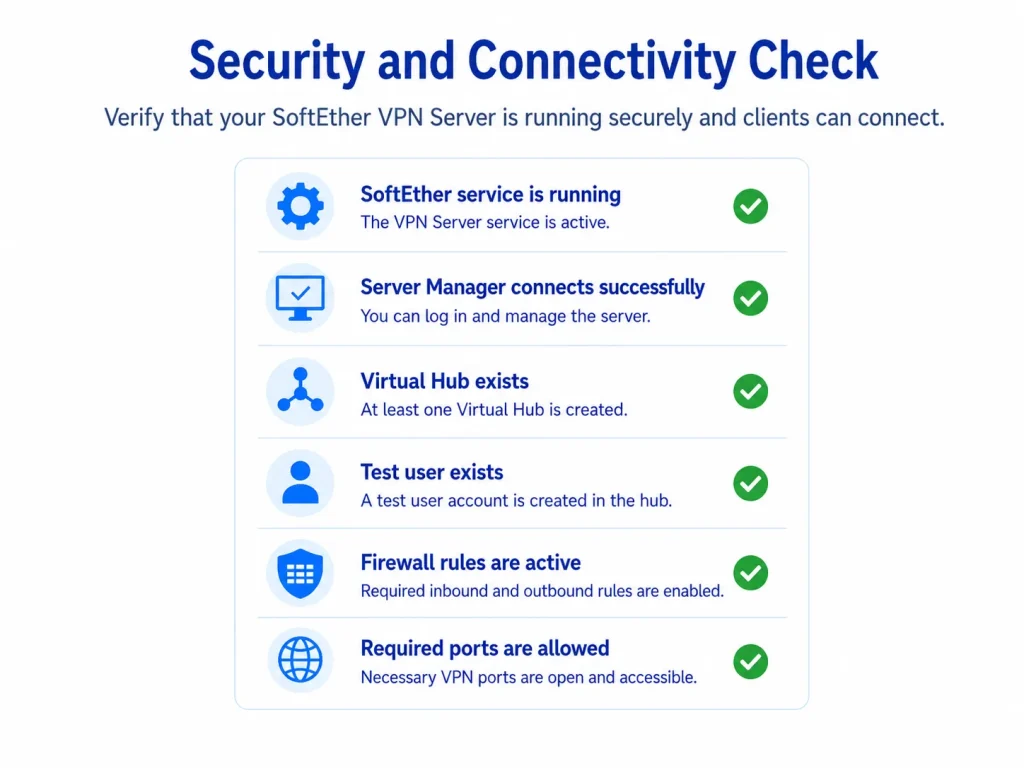
Once the server is installed and the initial configuration objects are in place, review the network settings carefully. A VPN server depends on reachable listening ports, but not every port needs to be opened widely or left open permanently. The safest approach is to confirm exactly what your setup requires and align your firewall configuration with that plan.
Check Windows Defender Firewall settings and make sure any rules you create are intentional. Do not treat the firewall as something to bypass entirely. Instead, consider it part of the deployment. A controlled rule set is better than exposing more services than you actually need.
Testing Basic Connectivity
At this stage, perform a simple functional test. The goal is to verify that the server is running, the user account is available, and the basic network path is functioning as expected. You do not need to build a full production workflow yet. You only need enough confirmation to know that the initial installation and configuration were successful.
If you plan to connect from a separate client device next, this is the point where you move from server setup into client-side testing.
Common Setup Mistakes to Check First
If something is not working, start with the most basic checks before assuming there is a deeper network problem. In many cases, early SoftEther deployment issues come from one of the following:
- The wrong SoftEther package was installed
- The administrator password was not set or recorded properly
- The Virtual Hub was not created
- The user account was not configured correctly
- Firewall rules do not match the intended listening ports
Keeping the initial deployment simple makes these checks much easier. A clean initial deployment is usually more valuable than an overly complex first configuration.
What to Do Next After the Basic Setup
Connecting with SoftEther VPN Client
Once your SoftEther VPN Server is installed and the initial configuration is complete, the next step is usually to connect from a client device. That client-side process is separate from the server setup covered in this article. In other words, the server is now ready for the next stage, but the connection workflow belongs in a different guide.
Keeping server administration and client setup separate improves both operational clarity and long-term maintenance. Your server build, access policies, and network configuration should be treated as one layer, while client setup and end-user access should be treated as another.
How to Set Up SoftEther VPN Client on Windows: Step-by-Step Guide
Expanding to Advanced VPN Designs Later
Once your basic SoftEther VPN Server deployment is working, you can move on to more advanced designs if needed. That may include more structured access control, additional users, stronger operational hardening, or more complex network topologies such as site-to-site connectivity.
However, those changes should come only after the initial installation is stable. The most reliable approach is to start with a clean server deployment, verify the fundamentals, and then expand in stages.
If you are choosing infrastructure for long-term use, this is also the point where a stable Windows VPS environment becomes important. A server that is easy to access, easy to maintain, and located in the right region can make long-term SoftEther operations much smoother.
SoftEther VPN on Windows: Site-to-Site Bridge from Overseas to Japan
FAQ
Q1. What is the difference between SoftEther VPN Server and SoftEther VPN Client?
SoftEther VPN Server is the component that accepts incoming VPN connections and hosts the VPN environment. SoftEther VPN Client is installed on a user device to connect to an existing VPN server. In this article, the focus is on installing and configuring the server side on a Windows VPS.
Q2. Why use a Windows VPS for SoftEther VPN Server?
A Windows VPS is useful when you want an always-on environment that can be managed through Remote Desktop. It is especially practical for users who prefer Windows-based administration tools or need a server in Japan for business operations, testing, or region-specific access workflows.
Q3. What should I check first if SoftEther does not work after installation?
Start with the basics. Confirm that you installed the correct SoftEther VPN Server package, that the administrator password was set properly, that a Virtual Hub and user account were created, and that the required firewall rules match the listening ports you intend to use.
Choose a Stable Windows VPS for Long-Term SoftEther Operation
If you plan to run SoftEther VPN Server over the long term, a reliable Windows VPS can make deployment, maintenance, and remote administration much easier. Review the available Japan VPS plans to find an environment that matches your operational needs, region requirements, and future expansion plans.
Looking for a Japan-Based VPS?
If you regularly access Japanese online services from overseas, a Japan-based VPS gives you a dedicated remote Windows environment hosted in Japan. Compare available plans, resources, and connection options to find a setup that fits your needs.