

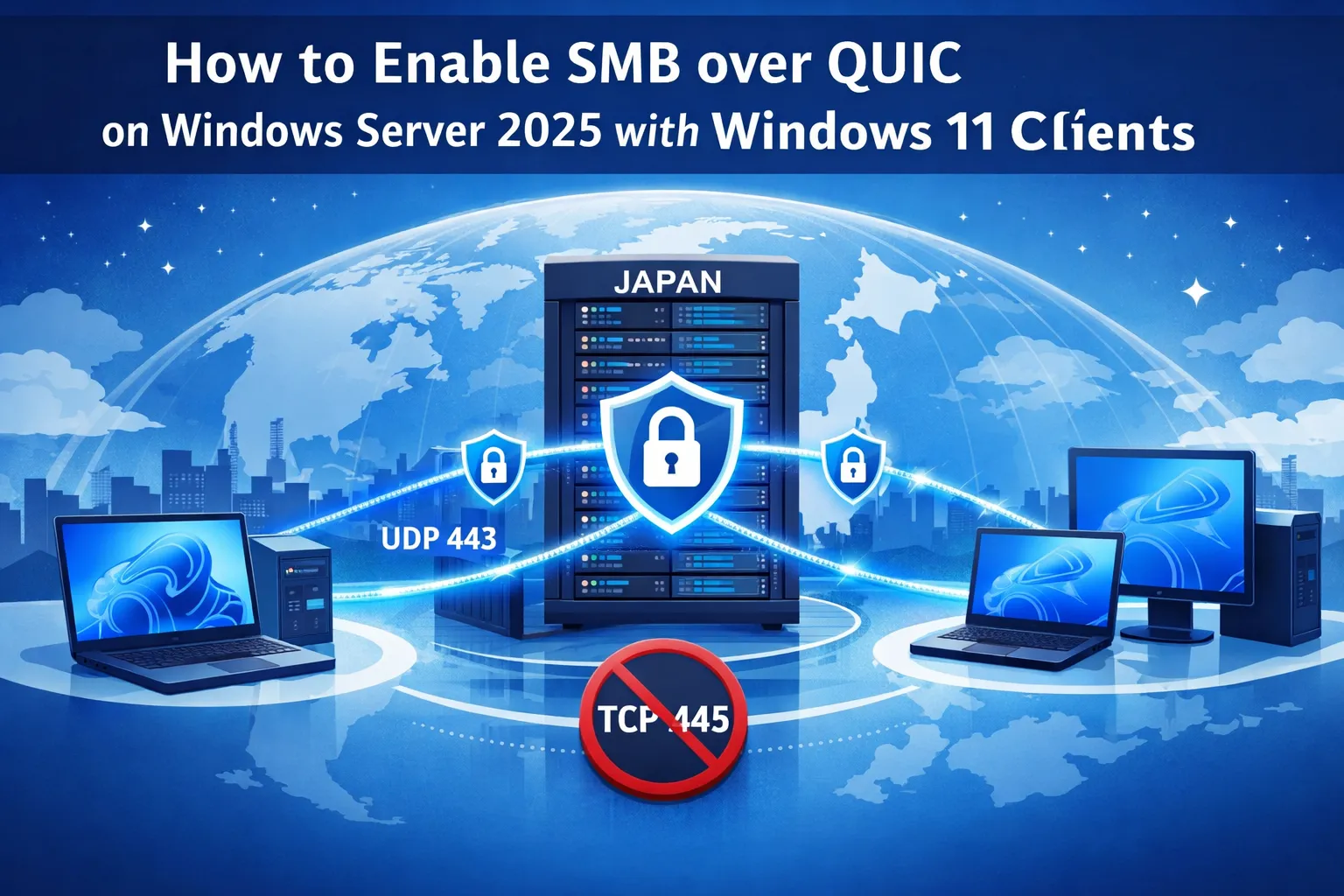
SMB over QUIC on Windows Server 2025 gives you a secure, modern way to publish file shares over the internet without exposing TCP 445. Instead of forcing users onto a full VPN just to open a shared folder, SMB traffic is wrapped in TLS 1.3 and sent over UDP 443, so Windows 11 clients can connect with a familiar experience while your security team keeps a tight control on exposed ports. This is especially valuable for organizations with remote workers, overseas engineers, or strict requirements around where data is stored and how it is accessed.
In this guide, you will learn how to enable SMB over QUIC step by step on Windows Server 2025 and connect from Windows 11 clients. We will review the prerequisites and network topology, install the File Server role, configure TLS certificates, DNS, and firewall rules, create and secure SMB shares, and then verify that QUIC is actually being used. We will also look at best practices, basic troubleshooting tips, and a practical example of running your SMB over QUIC server on a Japan Windows VPS to deliver low-latency, compliant file access from overseas.
Overview: What Is SMB over QUIC on Windows Server 2025?
SMB over QUIC is a modern way to provide secure access to SMB file shares over untrusted networks such as the public internet. Instead of exposing TCP port 445 directly, the SMB protocol is encapsulated inside QUIC, which runs over UDP 443 and is protected by TLS 1.3. From an end-user perspective, it behaves like a normal SMB file share, but the transport is more firewall-friendly and better aligned with zero-trust networking models.
On Windows Server 2025, SMB over QUIC is designed to work primarily with Windows 11 clients. The core SMB features you already rely on—such as multichannel, signing, encryption, and continuous availability—continue to work when SMB traffic is transported over QUIC.
How SMB over QUIC Works
At a high level, SMB over QUIC works as follows:
- The SMB server listens on UDP 443 and uses a TLS 1.3 server certificate to authenticate itself to clients.
- Windows 11 SMB clients initiate a QUIC connection to the server’s public hostname on UDP 443 and negotiate a secure tunnel.
- All SMB traffic (including authentication and authorization) flows inside this encrypted QUIC tunnel; no SMB session data is exposed to the underlying network.
- SMB over QUIC is disabled by default: you must explicitly configure a certificate mapping and enable it on the server. Clients can be configured to use QUIC as the preferred transport instead of falling back to TCP.
Key Benefits and Typical Use Cases
Key benefits of SMB over QUIC include:
- Internet-friendly transport: Uses UDP 443, which is usually open on corporate firewalls and proxies, so you don’t have to expose TCP 445 on the public internet.
- Always-encrypted file access: All SMB packets are wrapped in TLS 1.3, reducing the need to separately configure SMB encryption on individual shares.
- Better fit for zero-trust: Works well in scenarios where clients are on untrusted networks but still need secure access to corporate file servers.
- “SMB VPN” experience: For users, it can feel similar to having a VPN dedicated to file shares, without deploying full-tunnel VPN infrastructure.
Typical use cases include remote workers accessing on-premises or cloud-hosted file servers, as well as mobile devices connecting from outside the corporate network. SMB over QUIC is also useful for overseas teams accessing a file server located in a specific region— for example, a Windows Server 2025 instance hosted on a Japan VPS.
Prerequisites and Basic Topology
Server, Client, and Certificate Requirements
Before you configure SMB over QUIC on Windows Server 2025, ensure that the following prerequisites are met:
- Supported server OS: An SMB server running an edition of Windows Server that supports SMB over QUIC, such as Windows Server 2025 or later releases.
- Supported client OS: Windows 11 devices , because SMB over QUIC is designed to work with Windows 11 SMB clients.
- Identity: Ideally, both the SMB server and clients devices are joined to an Active Directory domain. SMB over QUIC can also work with local accounts and NTLM, but Active Directory and Kerberos are recommended for security.
- TLS server certificate: A server authentication certificate that:
- Is trusted by the clients (issued by your enterprise CA or a public CA).
- Includes a Subject Alternative Name (SAN) DNS entry that matches the FQDN clients will use to reach the server.
- Uses modern algorithms , such as RSA with SHA-256 or an ECDSA_P256 key.
- Administrative permissions: You need local administrator rights on the Windows Server 2025 machine to install roles, configure certificates, and run PowerShell commands.
Network and DNS Requirements
SMB over QUIC is designed to avoid exposing TCP 445 on the public internet. Instead, client connections rely on UDP 443:
- Public hostname: Choose a DNS name such as
fileserver.example.comthat:- Resolves to the public IP address or load balancer in front of your SMB server.
- Matches the SAN entry in the server’s TLS certificate.
- Firewall rules:
- Allow inbound UDP 443 from clients to the SMB server.
- Do not allow inbound TCP 445 on the public interface; SMB over QUIC is intended to replace direct exposure of 445 on the internet.
- Domain controllers: The SMB server must be able to reach at least one domain controller for authentication if you use Active Directory, but domain controllers themselves do not need direct internet exposure.
For a Japan-hosted file server, a typical topology uses a Windows Server 2025 VM in a Japan data center or on a Japan VPS.

The VM has a private IP address inside the provider network and is published to the internet via a public IP address or load balancer that forwards UDP 443 to the server. Clients around the world connect to the public FQDN and reach the SMB over QUIC endpoint in Japan.
Installing SMB over QUIC on Windows Server 2025
Adding the Required Roles and Features
SMB over QUIC is built on top of the standard File Server role. If your Windows Server 2025 instance does not already have the File Server role installed, you can add it using Server Manager or PowerShell.
Install the File Server role using PowerShell:
Install-WindowsFeature -Name FS-FileServer -IncludeManagementTools
This command installs the core file server components and related management tools on your Windows Server 2025 machine. Run it from an elevated PowerShell session with local administrator rights.
After the installation completes, you can create SMB file shares as usual using Server Manager, Windows Admin Center, or PowerShell. SMB over QUIC simply adds an additional transport for these shares; you don’t need a special “SMB over QUIC” feature name in Server Manager.
Installing via Server Manager or PowerShell
You can install the File Server role by using the graphical Server Manager as well:
- Open Server Manager.
- Go to Manage > Add Roles and Features.
- Select the target server, then choose File and Storage Services > File and iSCSI Services > File Server.
- Complete the wizard and restart the server if prompted.
If you prefer PowerShell, the single Install-WindowsFeature command shown above is usually all you need. Once the File Server role is in place, the next steps are to install and map the TLS certificate, then enable SMB over QUIC on the server.
Configuring Certificates, DNS, and Firewall
Installing and Selecting the TLS Certificate
First, make sure your TLS server certificate is installed in the local computer’s “My” certificate store. If you’re using an enterprise CA, you can request the certificate directly from the server. If you’re using a public CA, import the PFX file that includes the private key.
List the certificates in the local machine store:
Get-ChildItem -Path Cert:\LocalMachine\My
Filter and store the certificate you want to use for SMB over QUIC by matching its subject name. Replace <subject name> with a unique part of your certificate’s subject so that only the intended certificate is returned:
$serverCert = Get-ChildItem -Path Cert:\LocalMachine\My |

  Where-Object { $_.Subject -Match "<subject name>" }
Confirm that you selected the correct certificate:
$serverCert
Next, create the SMB server certificate mapping by using the server’s FQDN as the mapping name (for example, fileserver.example.com):
New-SmbServerCertificateMapping -Name <server FQDN> `

  -ThumbPrint $serverCert.Thumbprint `

  -StoreName My
This tells the SMB server which certificate it should use for SMB over QUIC connections on UDP 443.
Next, enable SMB over QUIC on the server itself:
Set-SmbServerConfiguration -EnableSMBQUIC $true
You can verify the current server configuration with:
Get-SmbServerConfiguration | Select-Object EnableSMBQUIC
If you want to explicitly enable SMB over QUIC on the client side as well, run the following command on supported Windows clients:
Set-SmbClientConfiguration -EnableSMBQUIC $true
Setting EnableSMBQUIC to $true on both server and client ensures that SMB over QUIC is available as a transport option.
Setting Up DNS and Allowing UDP 443
Now align your DNS records and firewall rules with the certificate and mapping:
- Create a DNS A or CNAME record for your SMB over QUIC hostname (for example,
fileserver.example.com). This hostname must:- Match the SAN DNS entry in the server certificate.
- Resolve to the public IP address or load balancer that forwards UDP 443 to the SMB server.
- On the Windows Server 2025 machine, ensure that Windows Defender Firewall allows inbound UDP 443.
- On any external firewall, NAT, or load balancer, allow inbound UDP 443 from your client networks to the server’s public endpoint.
- Avoid publishing TCP 445 directly to the internet on this endpoint; SMB over QUIC is specifically designed so that only UDP 443 is exposed.
Once DNS, certificate mapping, and firewall rules are in place, your server is ready to accept SMB over QUIC connections from supported Windows clients.
Creating SMB Shares for QUIC Access
Creating and Publishing File Shares
SMB over QUIC uses standard SMB shares; you do not need a special share type for QUIC. You can create the SMB shares that will be accessed over QUIC by using Server Manager or PowerShell. For example, to create a basic share at D:\Data\Project with the share name Projects:
New-SmbShare -Name "Projects" -Path "D:\Data\Project"
You can add parameters such as -Description or -FolderEnumerationMode as needed. The important point is that the share is accessible via SMB and secured with appropriate permissions.
Setting Share and NTFS Permissions
Security for SMB over QUIC shares is the same as for traditional SMB:
- Use groups (for example,
FileServer-Projects-ReadandFileServer-Projects-Modify) instead of assigning permissions directly to users. - Grant least privilege by assigning only the rights that users actually need to do their job.
- Avoid giving full control to
EveryoneorAuthenticated Userson production shares.
You can configure share-level permissions in Server Manager or with PowerShell.
For example:
Grant-SmbShareAccess -Name "Projects" `

  -AccountName "CORP\FileServer-Projects-Modify" `

  -AccessRight Change -Force
Then enforce more granular permissions at the NTFS layer (for example, using the Security tab in File Explorer or the icacls tool).
Connecting from Windows 11 and Verifying QUIC
Client Requirements and Connection Methods
On the client side, make sure that your Windows 11 devices:
- Run a supported Windows 11 build with SMB over QUIC support enabled.
- Either of the following:
- Are joined to the same Active Directory domain (recommended), or
- Have valid local credentials on the SMB server and can use NTLM when appropriate.
- Trust the issuing CA of the server’s TLS certificate.
To connect from Windows 11, users can simply open File Explorer and enter a UNC path such as:
\\fileserver.example.com\Projects
Windows will attempt to establish a secure connection to the server by using the best available transport (QUIC when available, otherwise TCP).
To explicitly request QUIC from a command prompt:
NET USE * \\fileserver.example.com\Projects /TRANSPORT:QUIC
Or from PowerShell:
New-SmbMapping -LocalPath 'Z:' `

  -RemotePath '\\fileserver.example.com\Projects' `

  -TransportType QUIC
These commands instruct the client to use QUIC as the transport for the SMB mapping instead of relying on TCP.
Verifying That SMB over QUIC Is Used
To confirm that your connection is actually using SMB over QUIC:
- On the client, open Event Viewer.
- Browse to Applications and Services Logs > Microsoft > Windows > SMBClient > Connectivity.
- Look for events indicating QUIC as the transport for the SMB connection.
You can also check the SMB client configuration:
Get-SmbClientConfiguration | Select-Object EnableSMBQUIC
If a connection fails, start with the basics:
- Verify that the FQDN resolves to the correct public IP address.
- Confirm that UDP 443 is open and forwarded correctly to the server.
- Check that the server certificate is valid, not expired, and trusted by the client.
- Confirm that the user account has permission on the target SMB share.
Best Practices, Troubleshooting, and Japan VPS Scenario
Security and Operational Best Practices
To run SMB over QUIC in a secure and stable manner, keep these best practices in mind:
- Disable SMBv1: Ensure that SMBv1 is disabled everywhere; it is obsolete and insecure. Remove the SMBv1 feature if it is still present.
- Patch regularly: Keep your Windows Server 2025 servers and Windows 11 clients current with security updates.
- Harden certificates: Use strong key sizes and modern algorithms, and monitor certificate expiration dates; plan certificate renewal before they expiry.
- Follow least privilege: Use group-based access control and avoid overly permissive share and NTFS permissions.
- Limit exposed ports: On internet-facing endpoints, expose only what you need—typically UDP 443 for SMB over QUIC—and keep TCP 445 closed on public interfaces.
Common Issues and Basic Troubleshooting
If clients cannot connect over QUIC, or they silently fall back to TCP or another transport, check the following:
- DNS and certificate mismatch: The FQDN must match the SAN in the server certificate. If users connect via an IP address or an unexpected hostname, the TLS handshake may fail.
- Certificate trust: Make sure the issuing CA’s root certificate is trusted by the client. Import the appropriate root or intermediate certificates if necessary.
- Firewall state: Confirm that UDP 443 is allowed end-to-end. It’s common to accidentally allow only TCP 443 when setting up rules.
- Server configuration: Verify that
EnableSMBQUICis set to$trueon the server and that the certificate mapping exists. - Client compatibility: Ensure that the client OS is supported and that SMB over QUIC has not been disabled by Group Policy or local configuration.
For deeper diagnostics, you can combine Event Viewer logs on both the server and the client and network captures (for example, by using Wireshark) to confirm whether QUIC traffic is reaching the server and whether the handshake completes successfully.
Running SMB over QUIC on a Japan Windows VPS
One very practical deployment pattern is to run your SMB over QUIC server on a Windows Server 2025 VM hosted on a Japan VPS. In this scenario:
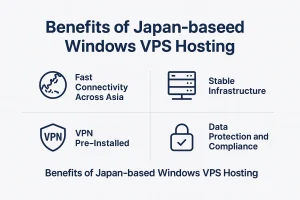
- Your SMB server runs in a Japan-based data center, close to Japanese web services, partners, or users.
- Overseas engineers and remote workers connect via SMB over QUIC by using the server’s public FQDN on UDP 443.
- You gain low-latency access to resources hosted in Japan while keeping file access strongly encrypted and authenticated.
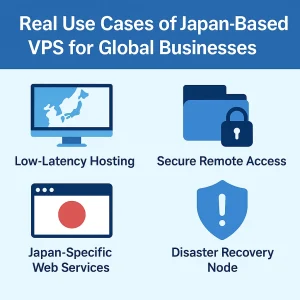
This setup is useful for development teams that need fast access to assets stored in Japan (such as code repositories, build outputs, and media files), or for organizations that are required to keep data in Japan for compliance reasons while still enabling global access. A Japan Windows VPS makes it easy to start small for testing and then scale up resources as your file workloads grow.

Summary and Next Steps
SMB over QUIC on Windows Server 2025 provides a secure, modern way to publish file shares over the internet without exposing TCP 445. By combining a properly issued TLS certificate, publishing on UDP 443, and Windows 11 clients, you essentially get a purpose-built “SMB VPN” with a familiar user experience.
In this tutorial, you have:
- Reviewed what SMB over QUIC is and when to use it.
- Checked prerequisites and designed a basic topology.
- Installed the File Server role and prepared the server for SMB over QUIC.
- Mapped a TLS certificate and aligned DNS and firewall rules.
- Created SMB shares and connected from Windows 11 over QUIC.
- Learned best practices and explored a realistic Japan VPS deployment scenario.
From here, you can extend the setup with advanced features such as refined client access control, additional monitoring and logging, and high-availability clustering, depending on your environment’s requirements and risk profile.
FAQ
Q1. Do I still need a VPN if I use SMB over QUIC on Windows Server 2025?
A1. SMB over QUIC provides a secure, TLS 1.3–protected tunnel for SMB traffic over UDP 443, so users can access file shares over the internet without exposing TCP 445. In many cases, this reduces or removes the need for a traditional full-tunnel VPN just for file access. However, you may still need a VPN for other applications, management tools, or protocols that are not covered by SMB over QUIC.
Q2. What are the main requirements to use SMB over QUIC from Windows 11 clients?
A2. You need a Windows Server 2025 file server with the File Server role installed, SMB over QUIC enabled, and a valid TLS server certificate mapped to the SMB server. DNS must resolve the SMB over QUIC hostname to the correct public endpoint, and UDP 443 must be allowed end-to-end. On the client side, Windows 11 devices must run a supported build with SMB over QUIC support enabled, trust the issuing CA of the server certificate, and have network connectivity to the server’s public FQDN on UDP 443.
Q3. Can I run SMB over QUIC on a Japan VPS and allow secure access from overseas users?
A3. Yes. A common pattern is to run Windows Server 2025 on a Japan Windows VPS and publish SMB over QUIC on UDP 443. The server stays in a Japan-based data center, close to local services and users, while overseas engineers and remote workers connect by using the server’s public FQDN. This approach provides low-latency access to resources hosted in Japan while keeping file access encrypted and authenticated, and it can also help organizations meet data residency or compliance requirements.
Run SMB over QUIC on a Japan Windows VPS
If you want to host your Windows Server 2025 file server close to users and services in Japan, running it on a Japan Windows VPS is a practical option. You can deploy a Windows Server 2025 instance, enable SMB over QUIC, and give remote users secure access to file shares over UDP 443, all while keeping your data in a Japan data center. Start with a small plan for testing and then scale up as your workloads grow.