

You open DMM GAMES Player, log in, and get “Country Not Allowed.” It means DMM checked where your connection is coming from and decided it isn’t Japan. This guide shows you how to confirm that in two minutes, why consumer VPNs keep breaking, and how to set up a connection that keeps working: a Windows PC in Japan that you control from home.
Quick answer: DMM blocks connections from outside Japan and from many shared VPN addresses. If quick fixes don’t work, use a Japan Windows VPS. It gives you your own Japanese IP address that isn’t shared with thousands of other VPN users, so the “works today, broken tomorrow” cycle stops.
What “Country Not Allowed” Means
DMM limits many of its games to players in Japan. When you connect, it checks your IP address, the number that tells websites where your internet connection comes from. If that address is outside Japan, or belongs to a VPN server DMM has flagged, you get “Country Not Allowed.” This is not a bug in DMM GAMES Player, and reinstalling it won’t help. The problem is your connection.
Try These Quick Fixes First (2 Minutes)
- Check your IP location. Go to a site like whatismyipaddress.com. If it doesn’t say Japan, that’s your answer.
- Log out of DMM and clear its cookies. If you switched between a VPN and your normal connection, old login data can keep triggering the error. In your browser settings, delete cookies for dmm.com, then log in again.
- Turn off browser extensions (ad blockers, privacy tools) and try again.
- If you’re on a VPN, switch to a different Japan server and restart DMM GAMES Player.
If your IP shows Japan and you still get the error, DMM has most likely flagged your VPN’s address. Switching servers might work for a day or two, but it will keep happening. Here’s why.
Why Your VPN Keeps Getting Blocked
Consumer VPNs put thousands of users on the same small set of Japanese IP addresses. DMM and other Japanese services can see that pattern and block those addresses. When they do, everyone on that server is cut off at once. That’s why a VPN works one day and fails the next. You didn’t do anything wrong. The address you were sharing got blocked. The fix is to stop sharing an address.
The Fix: Your Own Windows PC in Japan
A Japan Windows VPS is a Windows computer in a data center in Japan that you rent by the month. It comes with its own Japanese IP address that only you use. You can use it in two ways:
Option A: Play directly on the VPS (Remote Desktop)
You open the VPS from your own computer with Remote Desktop. Its screen appears in a window, like any other app. You install DMM GAMES Player there and play. Since the game is running in Japan, DMM sees a Japanese connection. Best for: card games, idle games, strategy and simulation games, and anything you want to keep running when your own PC is off.
Watch how it works: connecting to a Japan Windows VPS and opening a Japanese browser game, with no VPN.
Option B: Use the VPS as your private VPN
Our gaming plans come with a pre-installed VPN. You connect your own PC to it, and your connection goes out through your VPS’s Japanese IP. You play on your own computer, with your own graphics card, but DMM sees a dedicated Japanese address instead of a shared VPN server. Best for: heavier games that need your own graphics card, or if you prefer playing on your own PC. See How to Set Up SoftEther VPN Client.
What It’s Actually Like
- Lag: With Remote Desktop, you’ll notice a small delay depending on where you live. From Asia it barely shows. From North America or Europe it’s noticeable but fine for card, idle, and strategy games. For fast action games, use Option B.
- Graphics: The VPS doesn’t have a gaming graphics card. Browser games and lighter DMM titles run fine. For heavy 3D games, use Option B.
- Devices: You can connect from Windows, Mac, iPhone, iPad, or Android with Microsoft’s free Windows App (formerly Remote Desktop).
- Leave it running: Close the Remote Desktop window and your game keeps running on the VPS. Connect again later and it’s exactly where you left it. (Only “Sign out” closes everything.)
- Cost: Gaming plans start at $19.80/month with no setup fee. See Japan Gaming VPS plans.
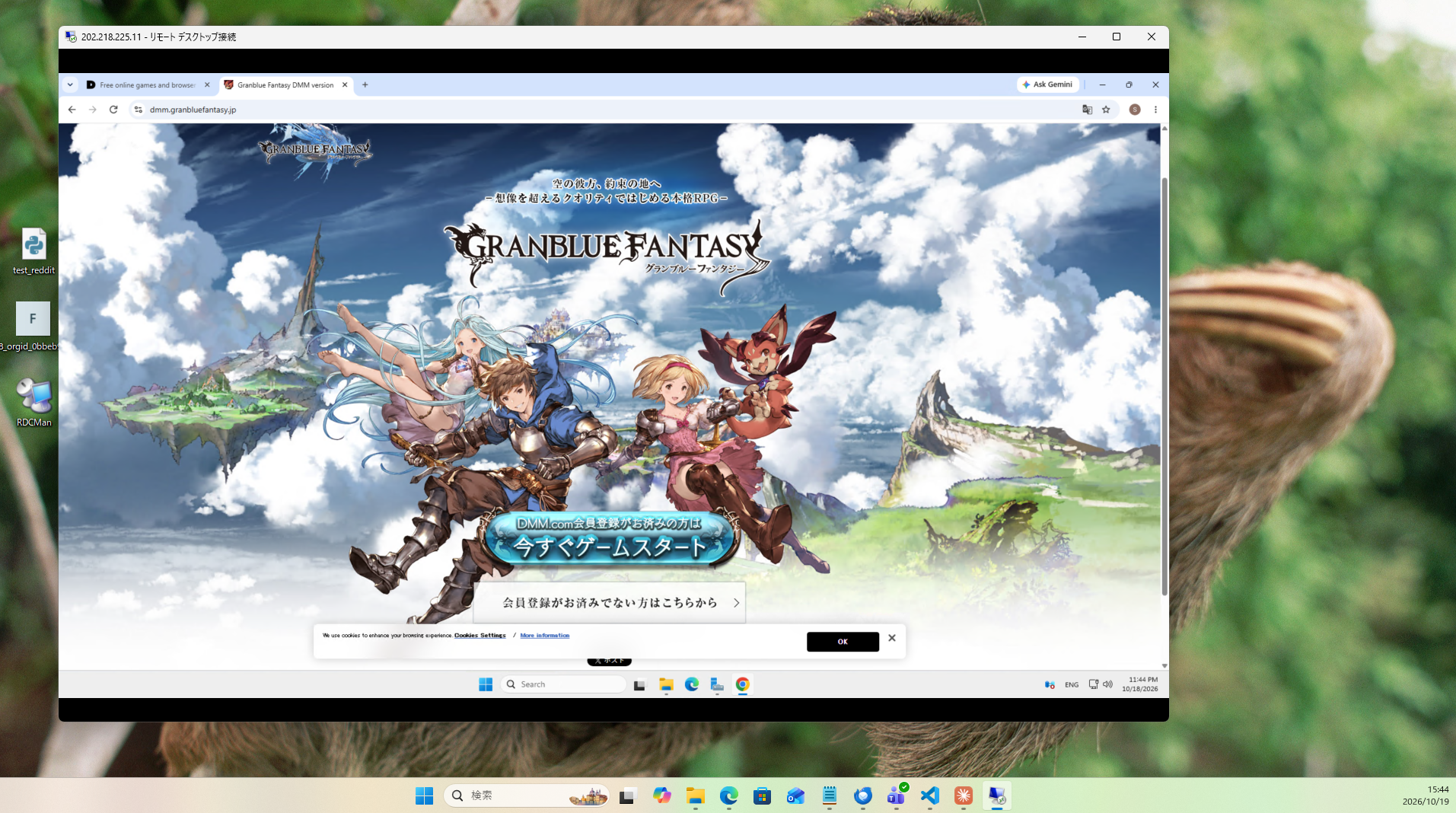
A Japanese browser game running on a Japan Windows VPS through Remote Desktop.
Set It Up in 5 Steps
-
- Choose a plan on the Japan Gaming VPS page. For one or two DMM browser games, SSD-4GB is enough.
- Sign up for free and place your order. You’ll get an email with your VPS’s IP address, username, and password.
- Connect with Remote Desktop.
- Install DMM GAMES Player on the VPS from DMM’s official site and log in.
- Play. To leave the game running, close the Remote Desktop window instead of signing out.
Recommended Remote Desktop Settings for Gaming
Open Remote Desktop Connection on your PC, click Show Options, and set these once:
-
-
- Display: set the size to Full Screen.
-
-
-
- Local Resources → Remote audio: choose Play on this computer so game sound comes through your speakers.
-
-
-
- Local Resources: check Clipboard to copy and paste between your PC and the VPS.
-
-
-
- Experience: choose Detect connection quality automatically and check Reconnect if the connection is dropped.
-
-
-
- General: enter your VPS’s IP address, click Save As, and save it to your desktop. Next time, just double-click it to connect.
-
Game looks small or leaves empty space? Many Japanese browser games use a fixed-size screen. Press Ctrl and + inside the VPS browser to zoom in, and Ctrl and 0 to reset.
Remote Desktop Shortcuts
| Shortcut | What it does |
|---|---|
| Ctrl + Alt + Break | Switch between full screen and windowed |
| Ctrl + Alt + Home | Show the connection bar in full screen |
| Alt + Page Up / Page Down | Switch between apps on the VPS (like Alt + Tab) |
| Alt + Home | Open the Start menu on the VPS |
| Ctrl + Alt + End | Send Ctrl + Alt + Delete to the VPS |
| Ctrl + Alt + Numpad Minus | Screenshot of the active VPS window to your clipboard |
| Ctrl + Alt + Numpad Plus | Screenshot of the whole VPS screen to your clipboard |
| Windows + Space | Switch keyboard language (after adding Japanese, below) |
No Break key on your laptop? Try Ctrl + Alt + Fn + B or Ctrl + Alt + Fn + Pause, depending on your keyboard. Need to type in Japanese (for player names or chat)? On the VPS, go to Settings → Time & Language → Language → Add a language → Japanese. Then press Windows + Space to switch, and Alt + ` to toggle between English letters and Japanese input.
Before You Sign Up: What a VPS Doesn’t Change
A VPS fixes your connection. It doesn’t change DMM’s account rules.
- Some DMM games and purchases require a Japanese phone number or Japanese payment method. Check what your game needs before you order.
- DMM’s services are intended for users in Japan. Read DMM’s terms for the games you play.
If your only problem is “Country Not Allowed,” a VPS solves it.
FAQ
What does “Country Not Allowed” mean on DMM Player?
DMM detected that your connection isn’t coming from Japan or is coming from a VPN address it has blocked.
Why does my VPN work one day and fail the next?
You share its Japanese IP addresses with many other users. When DMM blocks one, everyone on it loses access.
Will a Japan Windows VPS get blocked too?
Your VPS has its own Japanese IP address that isn’t shared with other VPN users, which is the main reason shared VPNs get blocked.
Which plan should I choose?
SSD-4GB for one or two browser games. SSD-8GB if you run several games, launchers, or Discord at the same time.